
How to Hide Prices in WooCommerce (Remove or Disable Prices for Guests, Groups, or Everyone)
There are many reasons to hide prices in a WooCommerce store. You might run a wholesale business where pricing is confidential and reserved for approved buyers. You might want a catalog-style website that showcases products without selling them online. Or you might simply need to remove prices on a handful of products while negotiating with customers through quotes.
WooCommerce does not include a built-in option to hide or disable prices, so in this guide we will walk through every practical way to do it. We will cover hiding prices for logged-out users, hiding prices on specific products or categories, disabling purchasing while keeping prices visible, replacing prices with a quote request system, and even removing prices with a small code snippet. We will also look at related visibility controls such as hiding stock levels, hiding products, and restricting entire pages.
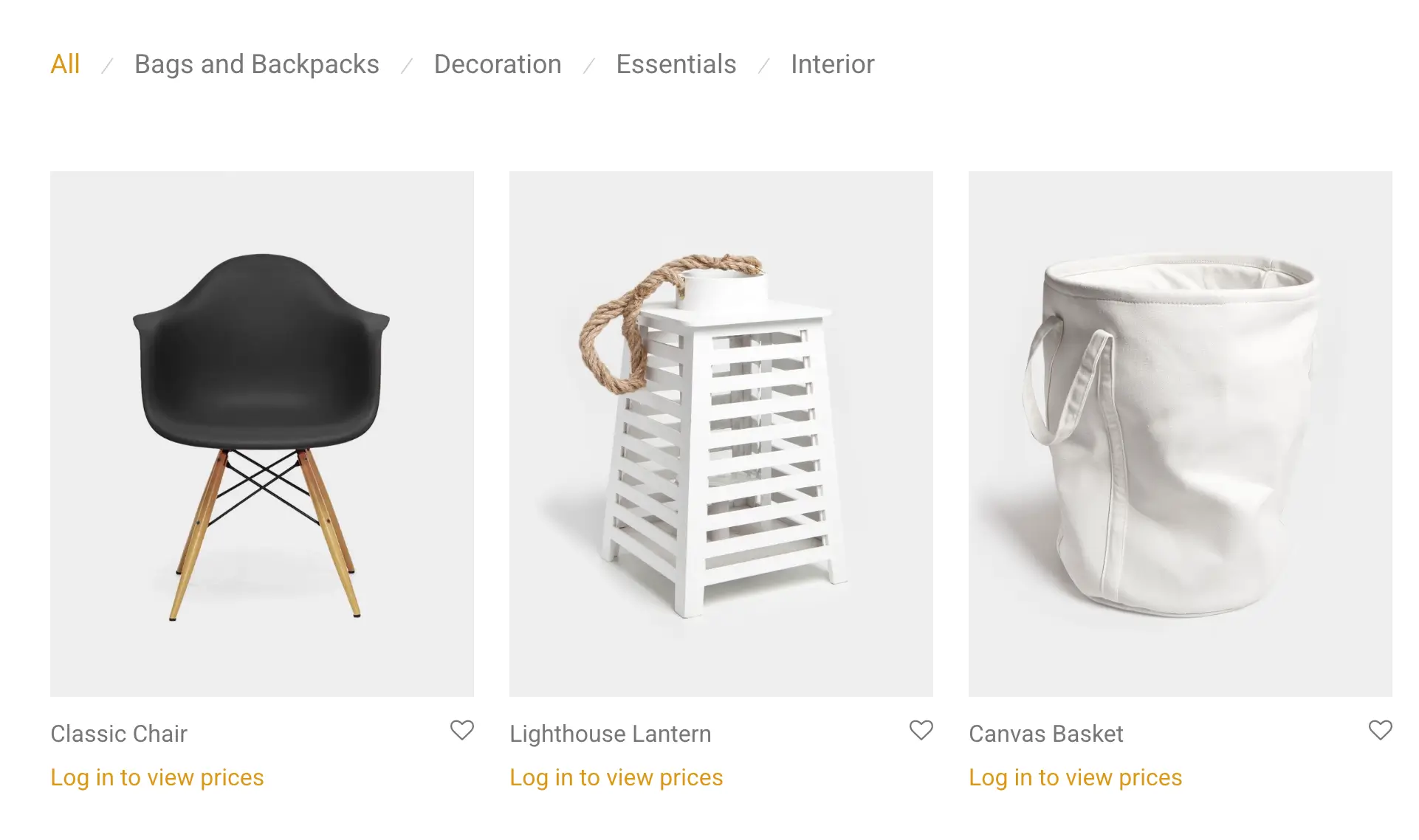
Most of the methods below use B2BKing, our complete B2B and wholesale plugin for WooCommerce, which handles all of these scenarios out of the box. Where a free or code-based approach makes sense, we cover that too.
Quick answer: how do you hide prices in WooCommerce?
The fastest way to hide prices in WooCommerce is to use a plugin such as B2BKing. In B2BKing, go to B2BKing -> Settings -> Access Restriction and enable Hide Prices. This replaces all prices with a "Log in to view prices" message for logged-out users, hides the Add to Cart button, and disables checkout. For more granular control, B2BKing's Dynamic Rules let you hide prices on specific products or categories, for specific users or user groups, or for everyone.
If you only need to visually remove prices and do not need to restrict purchasing, a short PHP snippet can also do the job (covered later in this article).
Why hide, remove, or disable prices?
Before choosing a method, it helps to be clear about what you are trying to achieve, because "hiding prices" means different things to different stores:
- Wholesale and B2B stores typically hide prices until a buyer logs in, because wholesale pricing is confidential and only approved businesses should see it.
- Catalog websites want to remove prices entirely for all visitors. The site exists to showcase products, and sales happen offline or through sales reps.
- Quote-based businesses (custom manufacturing, services, high-value equipment) prefer to replace prices with a "Request a Quote" button and negotiate each deal.
- Hybrid stores need mixed behavior: retail customers see normal prices, while certain products, categories, or customer groups have hidden prices or quote-only purchasing.
B2BKing supports all four scenarios. Let's go through them one by one.
Method 1: Hide prices for logged-out (guest) users
This is the classic private store setup: visitors can browse products, but prices are only visible after logging in.
In B2BKing, go to B2BKing -> Settings -> Access Restriction and set the guest access restriction option to Hide Prices.
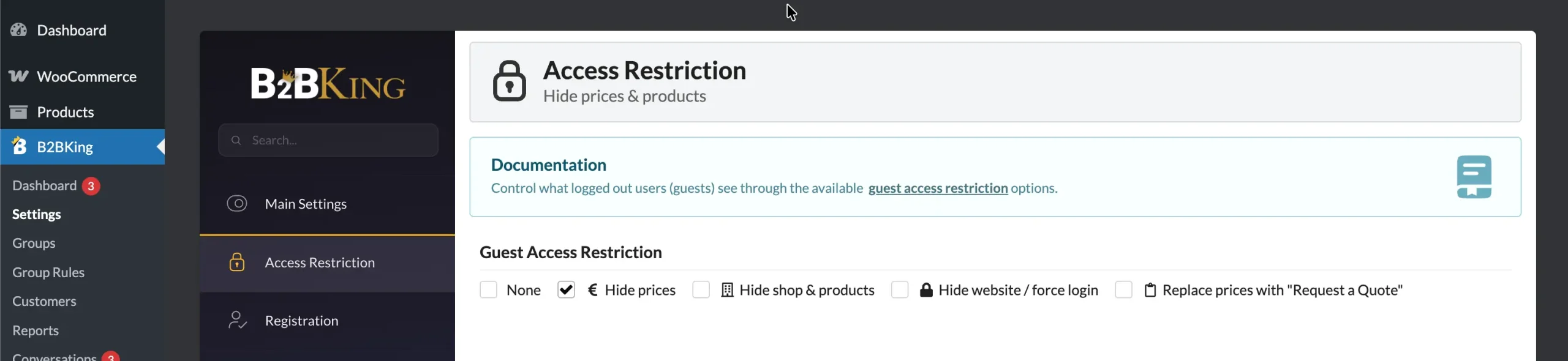
Here is what logged-out users will see:
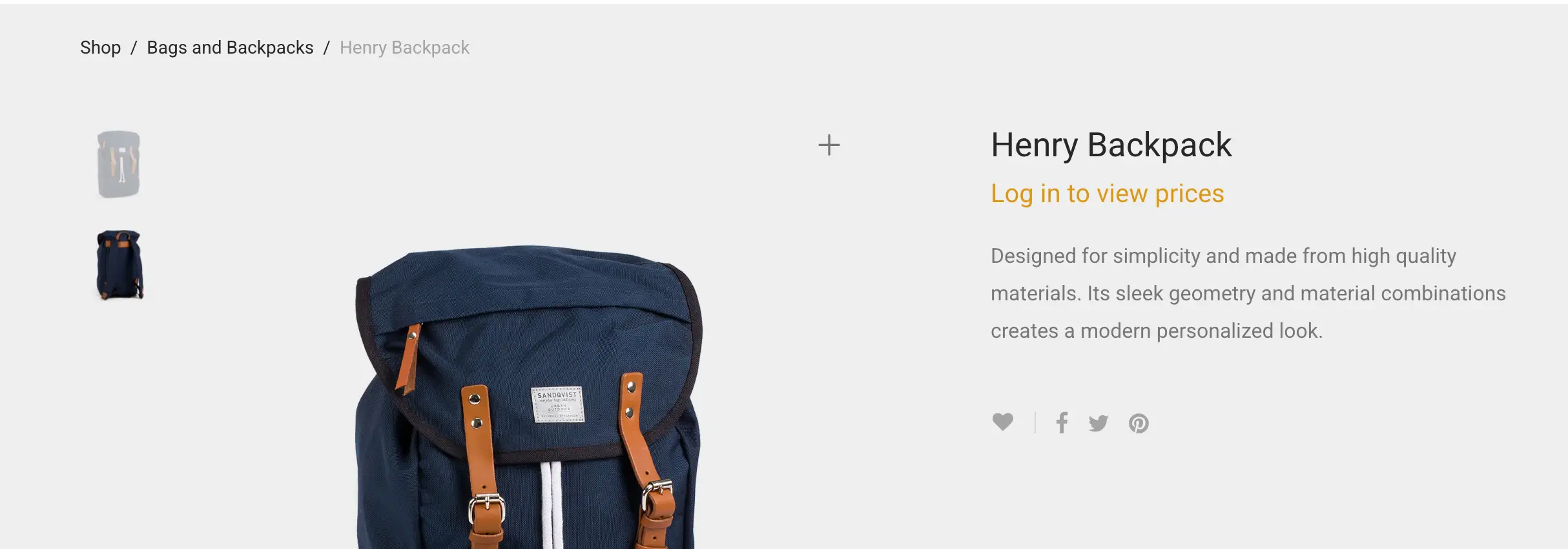
With this setting enabled:
- Prices are replaced with a "Log in to view prices" message everywhere: shop pages, product pages, search results, and widgets.
- The Add to Cart button is hidden, so guests cannot add products to the cart or check out.
- The replacement text is fully customizable in B2BKing -> Settings -> Language and Text. You can also turn it into a login link or login pop-up, and add icons.
- It works with all product types: simple, variable, and grouped. For variable products, prices are hidden for each individual variation and the selection is disabled.
One detail worth highlighting: price hiding in B2BKing is consistent across the entire plugin. If you use B2BKing's wholesale bulk order form, purchase lists, or any other feature that displays pricing, hidden prices stay hidden there as well. You will not run into the common problem where a price is hidden on the product page but leaks through somewhere else.
Method 2: Hide prices for specific products, categories, users, or groups
Hiding prices store-wide is often too blunt. Maybe only one product line has confidential pricing, or maybe a particular customer group should not see prices on certain categories. This is where B2BKing's Dynamic Rules come in.
A Hidden Price rule lets you choose exactly what gets hidden and who it gets hidden from. You can apply the rule to:
- Specific products or entire product categories
- All guest (logged-out) users
- All registered users, or only registered B2B or B2C users
- Specific customer groups, such as VIP, Resellers, or Distributors
- Individual users, selected by name
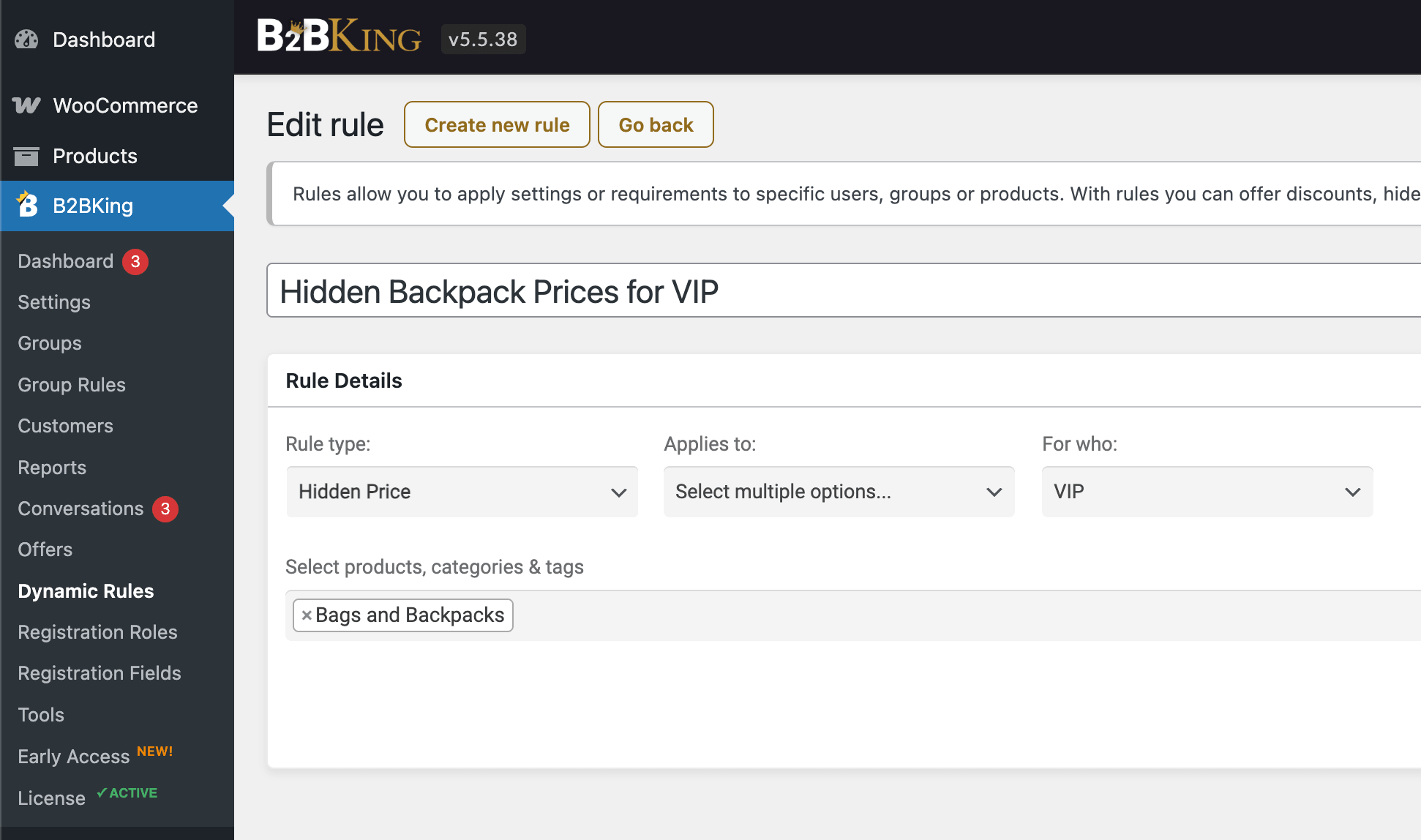
For example, you could hide prices on your "Custom Machinery" category for everyone except your Distributors group, while the rest of the store works normally.
Because rules can be combined freely, this system covers almost any visibility scenario you can think of, including hiding prices for every user on the site if you want a pure catalog store.
Method 3: Show prices but disable purchasing (Non-Purchasable rules)
Sometimes you do not want to hide the price at all. You want customers to see what a product costs, but you do not want them to buy it online. This is common for products that are out of season, restricted in certain regions, or only sold through sales representatives.
For this, B2BKing offers Non-Purchasable dynamic rules. A Non-Purchasable rule keeps prices fully visible but removes the ability to add the product to the cart. Like all dynamic rules, it can target specific products or categories and apply to guests, all users, groups, or individual customers.
This distinction matters when people search for ways to "disable" prices in WooCommerce. Often the real goal is to disable purchasing, not to hide the number. Non-Purchasable rules solve exactly that, and they pair nicely with quote functionality: a customer who sees a price but cannot buy can be directed to request a quote instead.
Method 4: Replace prices with a Request a Quote system
For quote-based selling, B2BKing can replace the standard cart and pricing with a complete quote request workflow. There are a few ways to set this up, depending on who it should apply to and how broad it should be.
For guests: in B2BKing -> Settings -> Access Restriction, choose Replace prices with "Request a Quote". Add to Cart buttons become "Add to Quote Request" buttons, and the cart becomes a quote request form where visitors enter their name, email, and message.
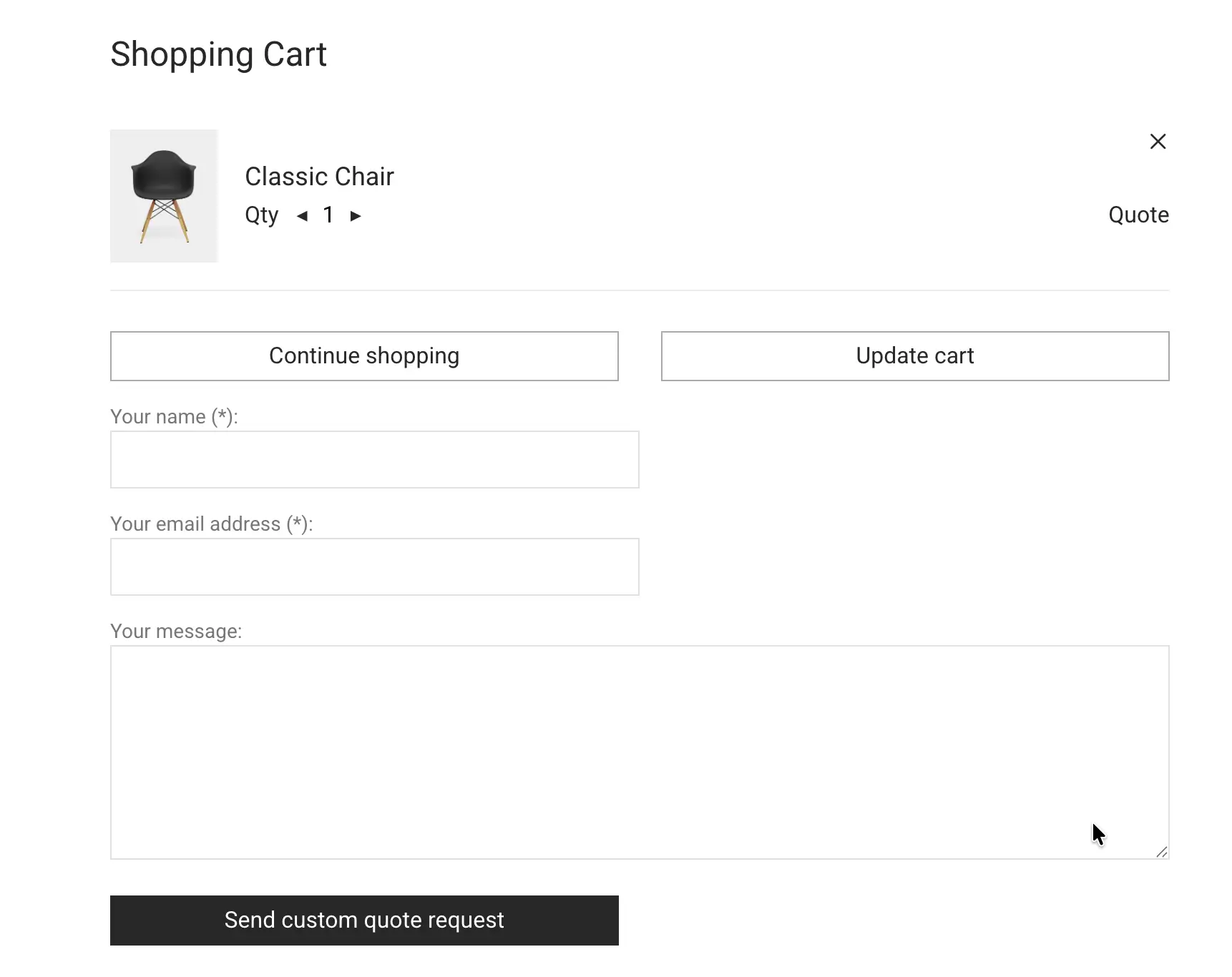
For logged-in users or groups: use a Replace Cart with Quote System rule. This converts the entire cart into a quote system for the users or groups you select.
For individual products: use a Quotes on Specific Products rule to enable quote requests only on selected products or categories, while the rest of the store sells normally.
A useful detail for both quote rules: you choose whether prices are hidden or remain visible. Some stores want customers to see the list price as a starting point for negotiation. Others want pricing fully confidential until a quote is issued. B2BKing supports both behaviors with a simple option on the rule.
Incoming quote requests appear in B2BKing's Conversations system, where you can message customers back and forth and respond with an Offer: a concrete proposal for a specific quantity at a specific price, which the customer can accept and purchase directly. You also receive email notifications for every new request. The full workflow is described in the Request a Quote documentation.
Method 5: Remove prices with a code snippet (free)
If you only need to visually remove prices for all visitors and you are comfortable adding a snippet to your theme, WooCommerce makes this possible with a filter. Add the following to your child theme's functions.php file or a code snippets plugin:
php
// Remove the price display in WooCommerce
add_filter( 'woocommerce_get_price_html', 'b2bk_remove_price_display' );
function b2bk_remove_price_display( $price ) {
    return '';
}
This removes the price HTML everywhere it is normally displayed. You can return a custom message instead of an empty string, for example return 'Contact us for pricing';.
Be aware of the limitations of the code approach:
- It does not disable purchasing. Products can still be added to the cart, and prices reappear in the cart and checkout. Properly disabling the cart and checkout requires additional code.
- It applies to everyone. There is no concept of users, roles, or groups, so you cannot show prices to approved buyers while hiding them from the public.
- Prices may still leak through plugins, feeds, structured data, and emails that do not use this filter.
For a simple catalog site, the snippet may be all you need. For anything involving logins, customer groups, quotes, or selective hiding, a dedicated plugin is the reliable path.
Going further: hide the shop, or hide the entire website
Hiding prices is one level of privacy. B2BKing's guest access restriction settings include two stronger levels:
Hide Shop & Products. Guests cannot see any products at all. The shop page shows a customizable "Please login to access the B2B Portal" message with login and registration fields, and direct product links redirect to this login screen. An optional "Restrict all pages" switch extends the restriction to every page on the site, not just shop pages.
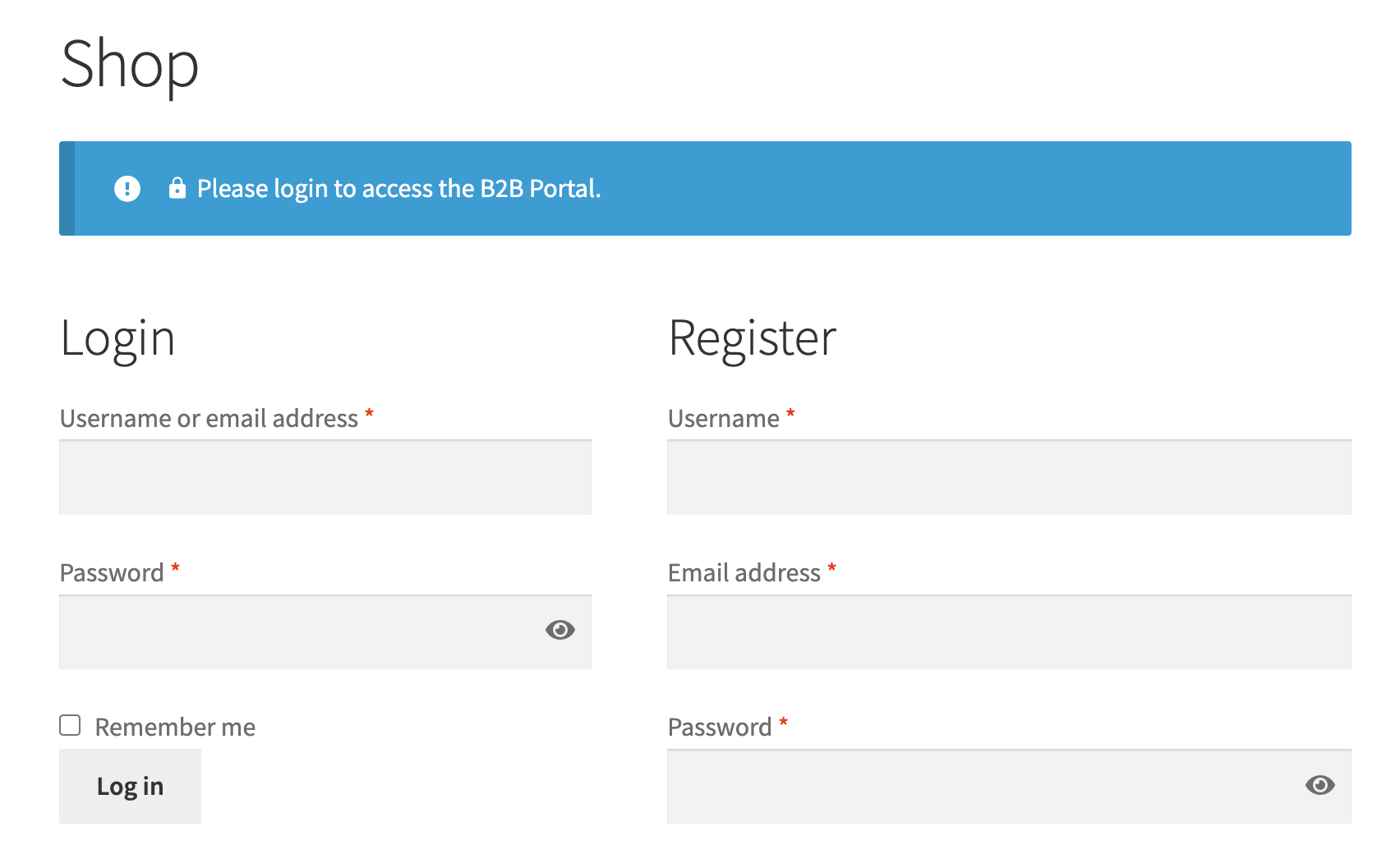
Hide Website & Force Login. The strictest option. Every visitor is redirected to the WordPress login screen no matter which URL they try to access. This is designed for intranets and fully private stores where customers receive login credentials directly. Since this mode shows no registration form, use "Hide Shop & Products" instead if you want customers to be able to sign up.
Related visibility controls beyond prices
Price visibility rarely lives in isolation. In a real B2B or hybrid store, you usually want to control visibility of several other things too. B2BKing handles these with the same group-based logic:
Hide products and categories. Rather than hiding a product's price, you can hide the product itself from specific groups, from B2C users, or from guests. Each group can effectively get its own catalog. See the product visibility documentation.
Hide stock levels. Many wholesale stores share exact inventory numbers with B2B partners but prefer not to show them to retail customers. B2BKing includes a setting to hide stock levels for B2C users, with the option to hide stock information completely or hide only the precise quantities.
Hide content on any page with a shortcode. The [b2bking_content] shortcode lets you wrap any content and restrict it to B2B users, B2C users, specific groups, or specific users. On a single product page, you could show wholesale terms only to Resellers and a retail description to everyone else. The same system can apply different CSS for different groups.
Hide entire pages. With page visibility by group, whole pages such as a wholesale terms page or a distributor resources page can be made invisible to everyone except the groups you choose.
Together with hidden prices, these controls let you run what is effectively a different store for each audience, all within one WooCommerce installation.
Which method should you use?
Here is a quick summary to help you choose:
| Your goal | Best method |
|---|---|
| Hide prices until customers log in | B2BKing setting: Hide Prices (Method 1) |
| Hide prices on certain products/categories or for certain groups | Hidden Price dynamic rules (Method 2) |
| Show prices but prevent online purchasing | Non-Purchasable dynamic rules (Method 3) |
| Sell through quotes and negotiation | Quote settings and quote rules (Method 4) |
| Remove prices for everyone on a simple catalog site | Code snippet (Method 5) or Hidden Price rules applied to all users |
| Completely private store or intranet | Hide Shop & Products, or Hide Website & Force Login |
Frequently asked questions
Can I hide WooCommerce prices without a plugin? Yes, a PHP snippet using the woocommerce_get_price_html filter can remove price display for all visitors (see Method 5). However, code snippets cannot hide prices selectively by user, role, or group, and they do not disable purchasing on their own. For anything beyond a basic catalog site, a plugin is more reliable.
Can I hide prices for specific user roles? Yes. B2BKing's dynamic rules can target B2B users, B2C users, guests, customer groups, and individual users. The companion Private Store by B2BKing plugin also supports hiding prices by WordPress user role and even by country, based on the visitor's IP address.
If I hide prices, can customers still check out? No. When prices are hidden through B2BKing, the Add to Cart button is removed and checkout is disabled for the affected users, so there is no way to purchase at an unknown price. If you want purchasing to remain possible, keep prices visible and use quote options for negotiation instead.
Will hidden prices appear in the bulk order form or other store areas? No. Hidden prices in B2BKing are hidden consistently across all plugin features, including the wholesale bulk order form, purchase lists, and product tables.
Does hiding prices hurt SEO? Hiding prices does not prevent your product pages from ranking, and it is standard practice for wholesale stores. Keep in mind that hidden prices will not appear in Google Shopping or price-based rich results, which is usually the intended outcome for confidential B2B pricing. If you hide the entire shop or website, those pages naturally cannot be indexed.
Is there a free version of B2BKing? Yes. B2BKing has a free version on WordPress.org that includes core B2B features. The premium version unlocks the full dynamic rules system, quote functionality, and over 137 features in total. You can try everything in the live demo before purchasing.
Conclusion
Hiding, removing, or disabling prices in WooCommerce comes down to matching the method to your goal. A store-wide setting handles the common "login to view prices" wholesale setup in one click. Dynamic rules give you surgical control over which products, users, and groups see prices, can purchase, or must request a quote. Non-Purchasable rules cover the cases where the price should stay visible but the Buy button should not. And for everything around prices, from stock levels to entire pages, the same group-based visibility system applies.
If you are building a B2B, wholesale, or hybrid store, B2BKing covers all of these scenarios along with registration approval, custom registration fields, VAT validation, tiered pricing, and much more. Try the live demo to see hidden prices and quote requests in action. Our WooCommerce B2B guide walks through the full setup.

