
WooCommerce Minimum Order Amount and Quantity: The Complete Guide
A minimum order requirement is one of the most common things store owners want to add to WooCommerce, and one of the things the platform does not handle on its own. In this guide we will look at how to set a minimum order amount (value) and a minimum order quantity in WooCommerce, how to apply different rules to different customers, and how to handle related needs such as maximum orders, package quantities, and payment method limits.
Most of the configuration below uses our premium plugin, B2BKing, through its dynamic rules system. We will also cover the free and code based methods so you can pick whatever fits your store.
Why set a minimum order in WooCommerce?
Before configuring anything, it helps to be clear about the goal, because the right threshold depends on it.
The most common reason is to raise the average order value. Setting a floor just below your current average tends to nudge customers toward slightly larger carts without scaring them away. A second reason is profitability. Very small orders often cost more to pick, pack, and ship than they earn, so a minimum protects your margin on low value purchases. For wholesale and B2B stores the requirement is usually built into the business model itself, since suppliers commonly sell in case quantities or above a set order value and do not want retail sized orders at trade prices.
A minimum order rule also pairs well with a free shipping threshold. If your free shipping starts at the same point as your minimum, the requirement reads as a reward rather than a restriction. You can set this up with B2BKing's free shipping for bulk orders rule.
One word of caution: a threshold set too high is a common cause of abandoned carts. It is usually better to start modest, watch your checkout completion rate, and raise the figure later if the data supports it.
Three ways to set a minimum order in WooCommerce
There is no built in minimum order setting in WooCommerce, so you will use one of these approaches:
- Custom code. A short snippet in your theme's functions.php file can block checkout below a fixed amount. This is free and fine for a single store wide value, but it becomes hard to maintain once you need different rules for different products or customers.
- A basic or free plugin. Several plugins add a simple global minimum, sometimes with per category or per user role options. These are a good fit for straightforward retail needs.
- B2BKing. Designed for B2B and wholesale, B2BKing handles minimum and maximum rules for amount or quantity, applied to products, categories, individual users, or customer groups, in almost any combination. This is the option to choose when one global figure is not enough.
The rest of this guide focuses mainly on B2BKing, with the code method covered near the end.
Setting a minimum order amount or value
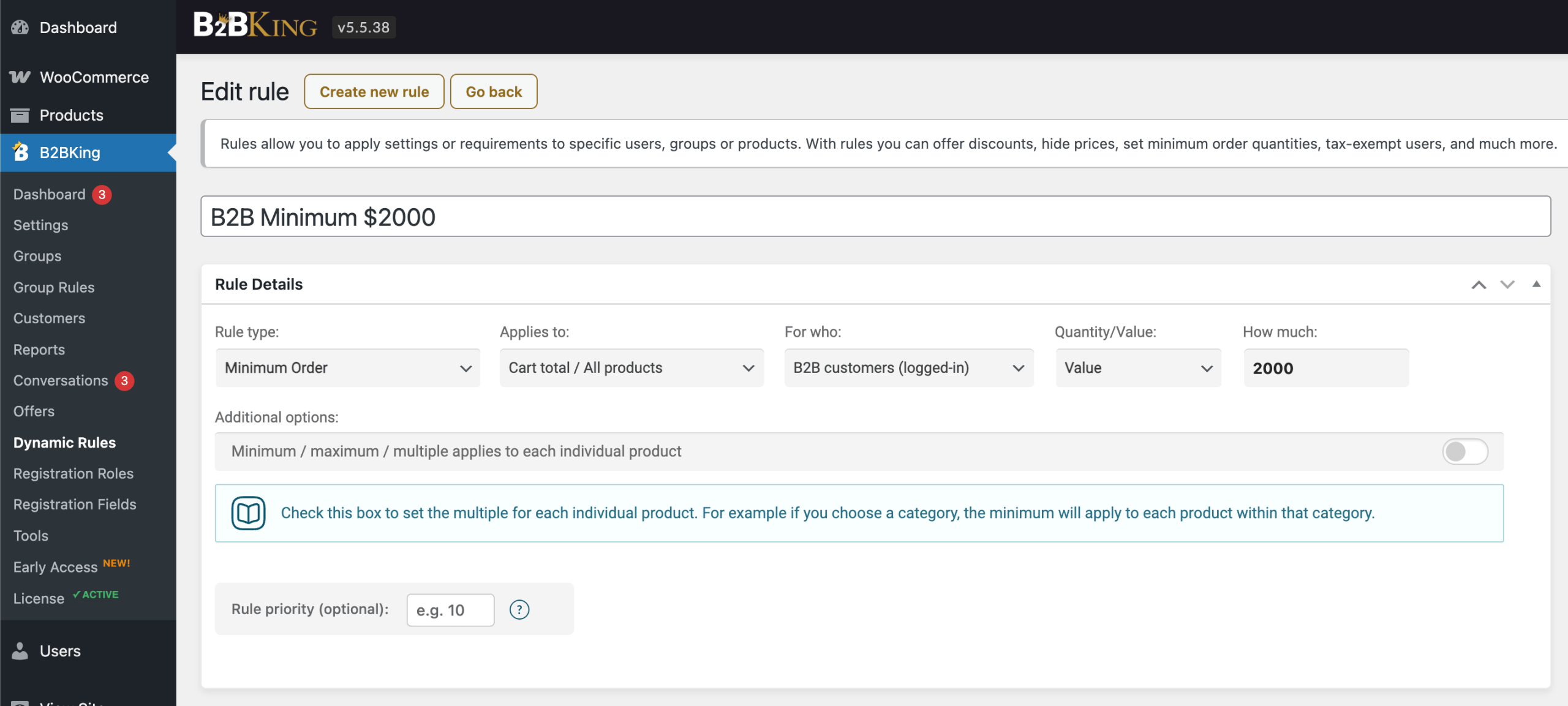
To set a minimum order value, go to B2BKing → Dynamic Rules and create a new rule. Choose the "Minimum Order" rule type and set the basis to Value. You can try all of this in the live plugin demo before buying.
As an example, here is a rule that requires a minimum order of $2,000 for all B2B users:
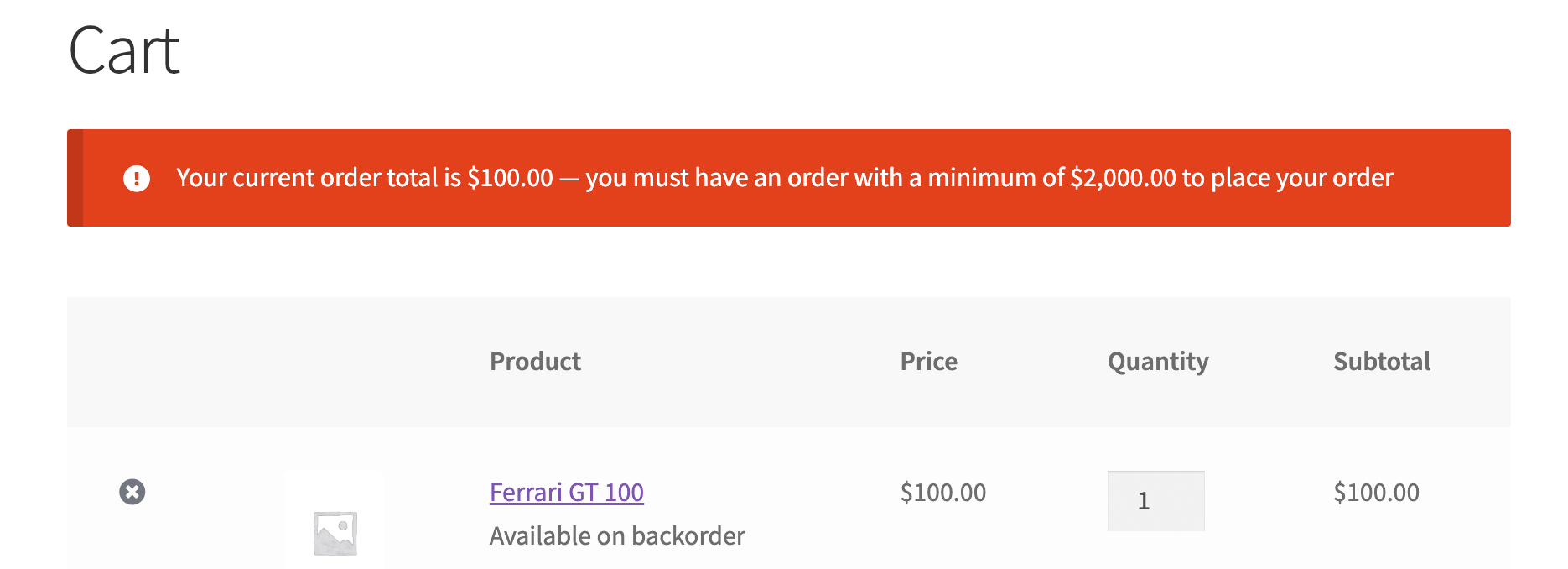
If a customer's cart falls below the threshold, they see a notice in the cart and are prevented from checking out:
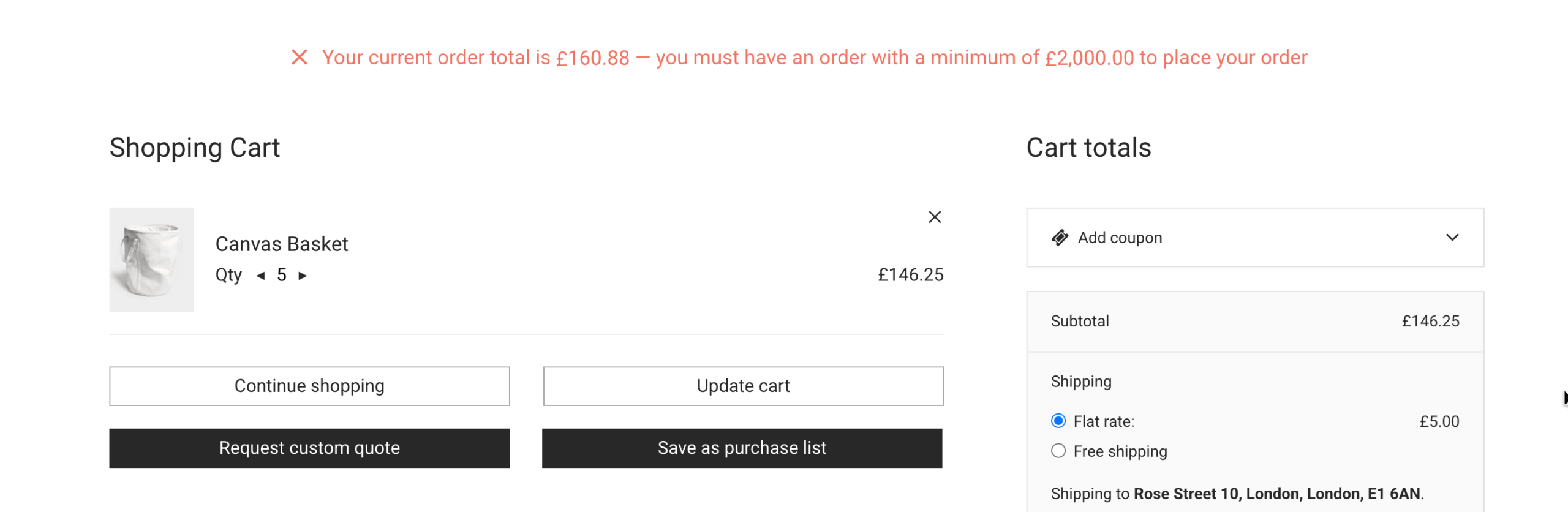
Rules can be stacked. If a customer is subject to more than one minimum, every condition has to be satisfied before checkout is allowed, so you can combine a value rule and a quantity rule on the same store without conflict. The notice text shown to customers can be edited to match your wording. The design of the notice is controlled by the theme, so this feature integrates seamlessly with any theme.
Setting a minimum order quantity
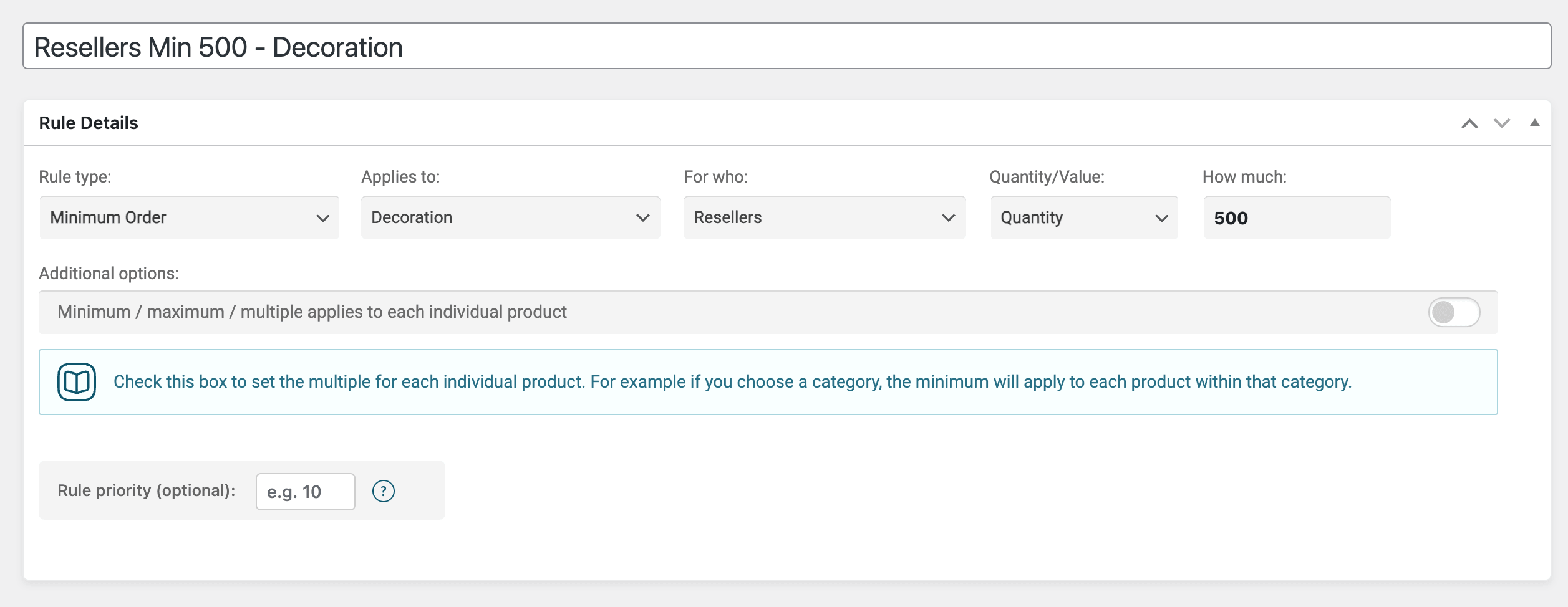
A minimum order quantity works the same way. Create a "Minimum Order" rule and set the basis to Quantity instead of value.
For instance, you might require users in your "Resellers" group to order at least 500 items from the "Decoration" category:
You can also scope a quantity rule to a single product. The example below sets a minimum of 5 bottles for one specific lotion, for all users:
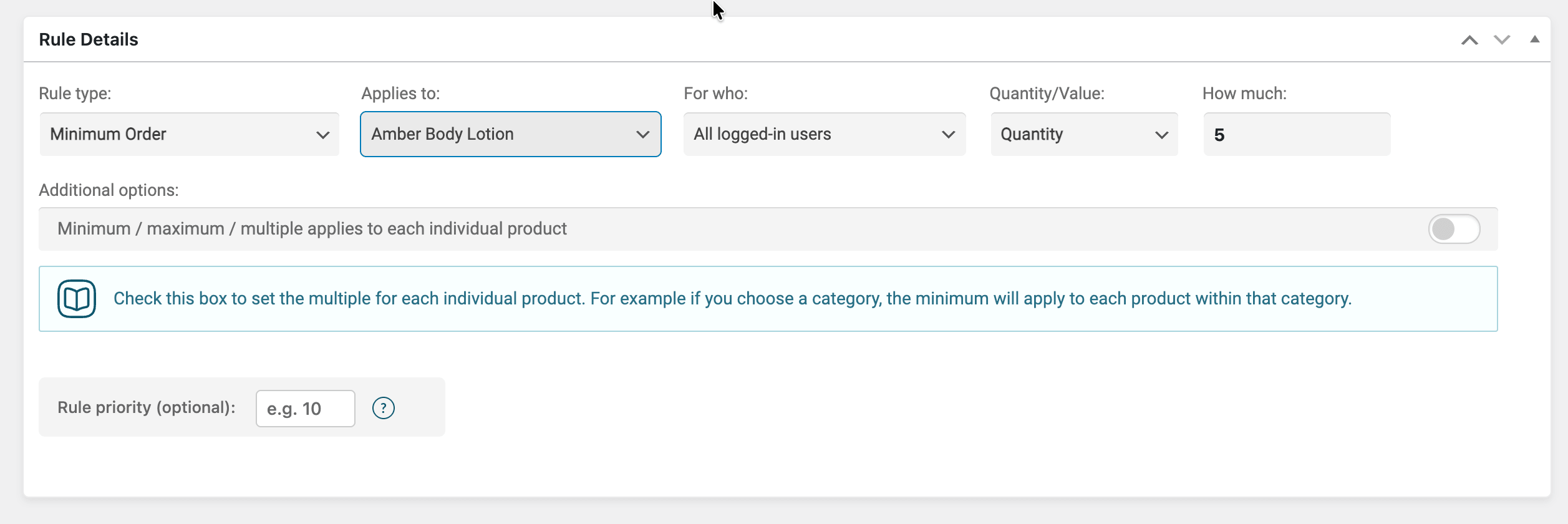
If a customer tries to buy fewer than the required amount, checkout is blocked with an explanatory message. Quantity rules can also target a specific variation of a variable product, so a red variant and a blue variant can each carry their own minimum.
This is different from selling items in fixed packs, which is covered further down under required multiples.
Different minimums for different customers, groups, and products
This is where B2BKing differs from most minimum order plugins. Rather than a single store wide figure, you can set a different minimum for each customer group, for an individual user, or for a particular product or category.
A typical setup might look like this:
- Resellers group: minimum order of $500
- VIP group: minimum order of $100
- Everyone else: no minimum
Because rules are tied to groups and users, the correct threshold is applied automatically as soon as a customer logs in, with no manual work per account. You can go further and set a minimum for one named customer, which is useful when a specific account has negotiated terms. There is a dedicated walkthrough for this in the guide on setting different minimum order thresholds for different users.
The same flexibility applies to products and categories. You can require a minimum spend within one category while leaving the rest of the store unrestricted, or set a per product minimum that only affects that single item.
Minimum, maximum, and step quantity on the product page
Dynamic rules are powerful, but for simple per product quantities there is now a faster option. Recent versions of B2BKing let you set the minimum, maximum, and quantity step directly on the product edit screen, without creating a rule at all. The full reference is in the quantity rules on the product page documentation.
To use it, edit any product and open the B2BKing panel, then enter your values:
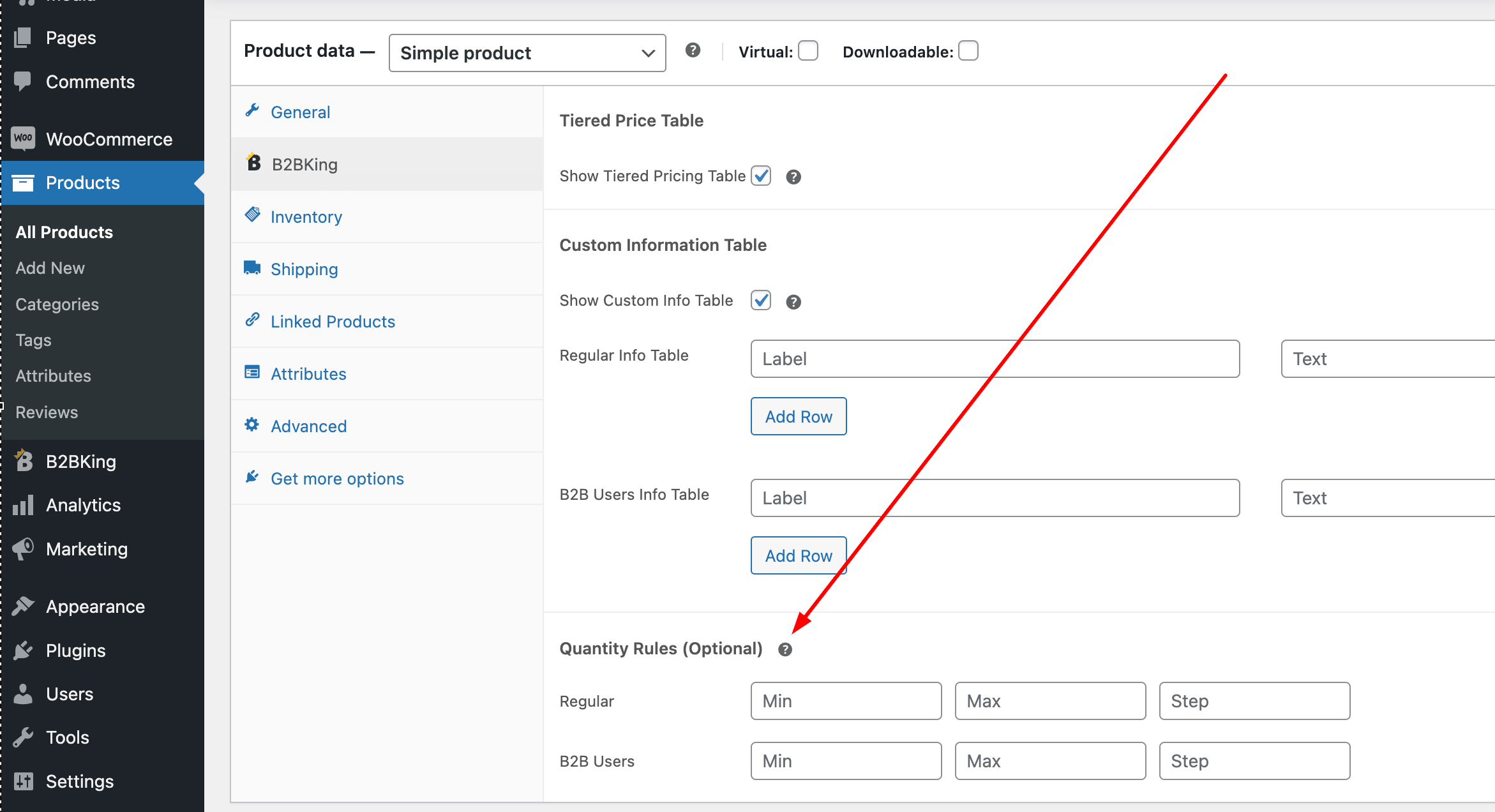
There is a separate row for each group. The "regular" row applies to everyone, and if a group has its own value, that value overrides the regular one for users in that group. For example, you can give B2C and logged out visitors a minimum of 10 while B2B buyers get a minimum of 20 on the same product. When a customer opens the product, the quantity field is already set to the minimum.
The "step" value is the package or box quantity. Setting a step of 6 forces the quantity field to move in sixes, so customers can choose 6, 12, 18, and so on, but nothing in between. On variable products the values apply to each variation, and if you need different figures per variation you can still use dynamic rules for that.
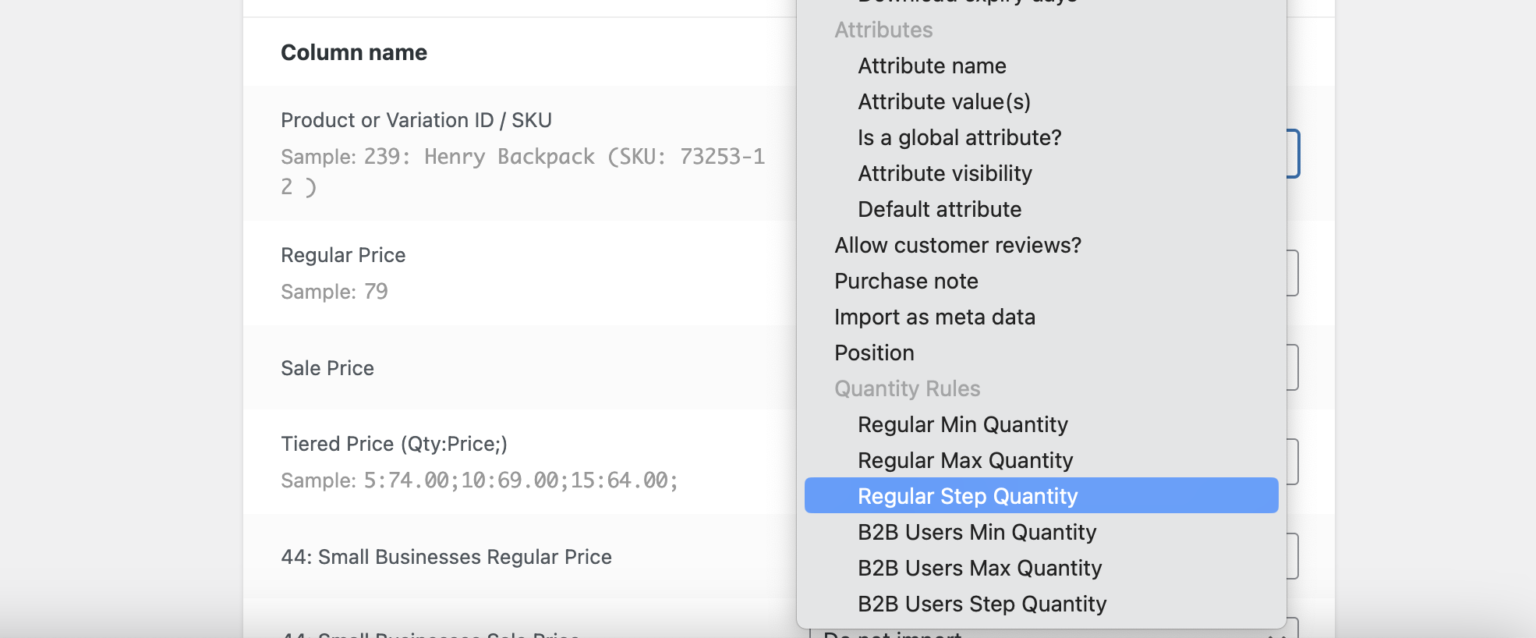
A useful side benefit of this feature is bulk setup. Because the values are stored as product metadata, you can prepare a spreadsheet and import them. Under Products → Import you will find additional fields for the minimum, maximum, and step quantities, so you can set unique values across hundreds of products at once instead of editing them one by one.
Selling in multiples or package quantities
Many wholesale products ship only in fixed packs, such as a box of 6 or a carton of 12. Besides the step field described above, B2BKing has a dedicated "Required Multiple" rule for this. It only allows a product to be purchased in multiples of the number you choose.
If a customer enters a quantity that is not a valid multiple, for example 8 when the box size is 6, they are asked to correct it before checkout.
These rules also support conditions. You could, for instance, only enforce box quantities on larger orders, so a customer buying fewer than 100 units can pick any quantity, but anyone ordering more has to follow the case size. Conditions like this are part of the wider dynamic rules system.
Setting a maximum order
Minimums have a mirror image. B2BKing can also cap an order by quantity or by value using a "Maximum Order" rule. This is handy for newer accounts where you have not yet established a credit relationship, or for limited stock that you want to spread across customers.
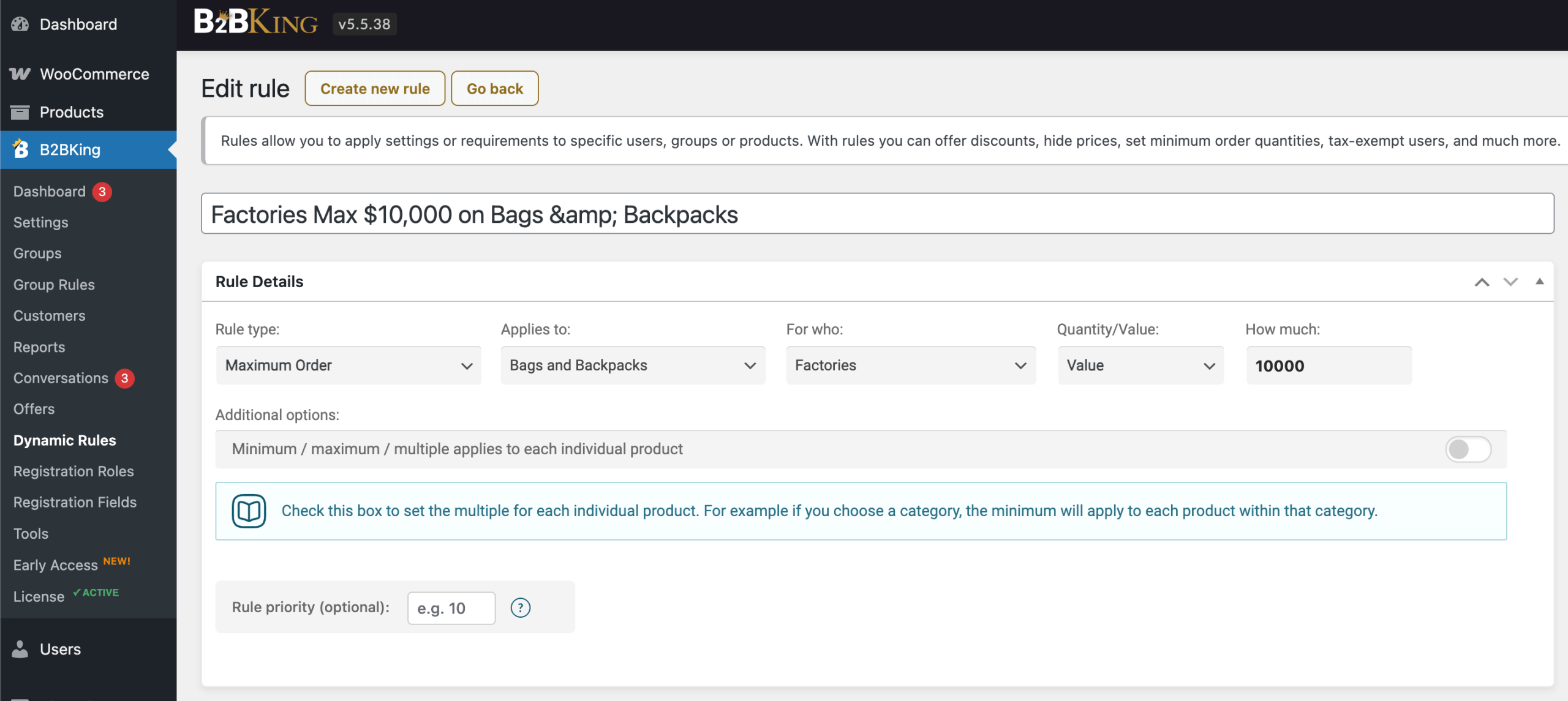
In the example above, users in the "Factories" group can order up to $10,000 of products from the "Bags & Backpacks" category. An attempt to exceed that amount stops checkout in the same way a minimum does.
Payment method minimum and maximum order value
Sometimes the limit should apply to a payment method rather than the whole order. B2BKing's "Payment Method Min / Max Order" rule shows or hides a gateway based on the cart total, and it works for both a minimum and a maximum. The details are in the payment method min and max documentation.
Common uses include:
- Offering bank transfer only on orders above $5,000
- Allowing cash on delivery only below $200
- Restricting a gateway to a specific group, such as B2B users only
When an order falls below the minimum or rises above the maximum for a method, that method simply does not appear at checkout.
A softer alternative: tiered pricing instead of a hard block
A minimum order is a hard stop, and sometimes that is not what you want. If your real goal is to encourage larger orders rather than to forbid small ones, tiered pricing can be a gentler approach.
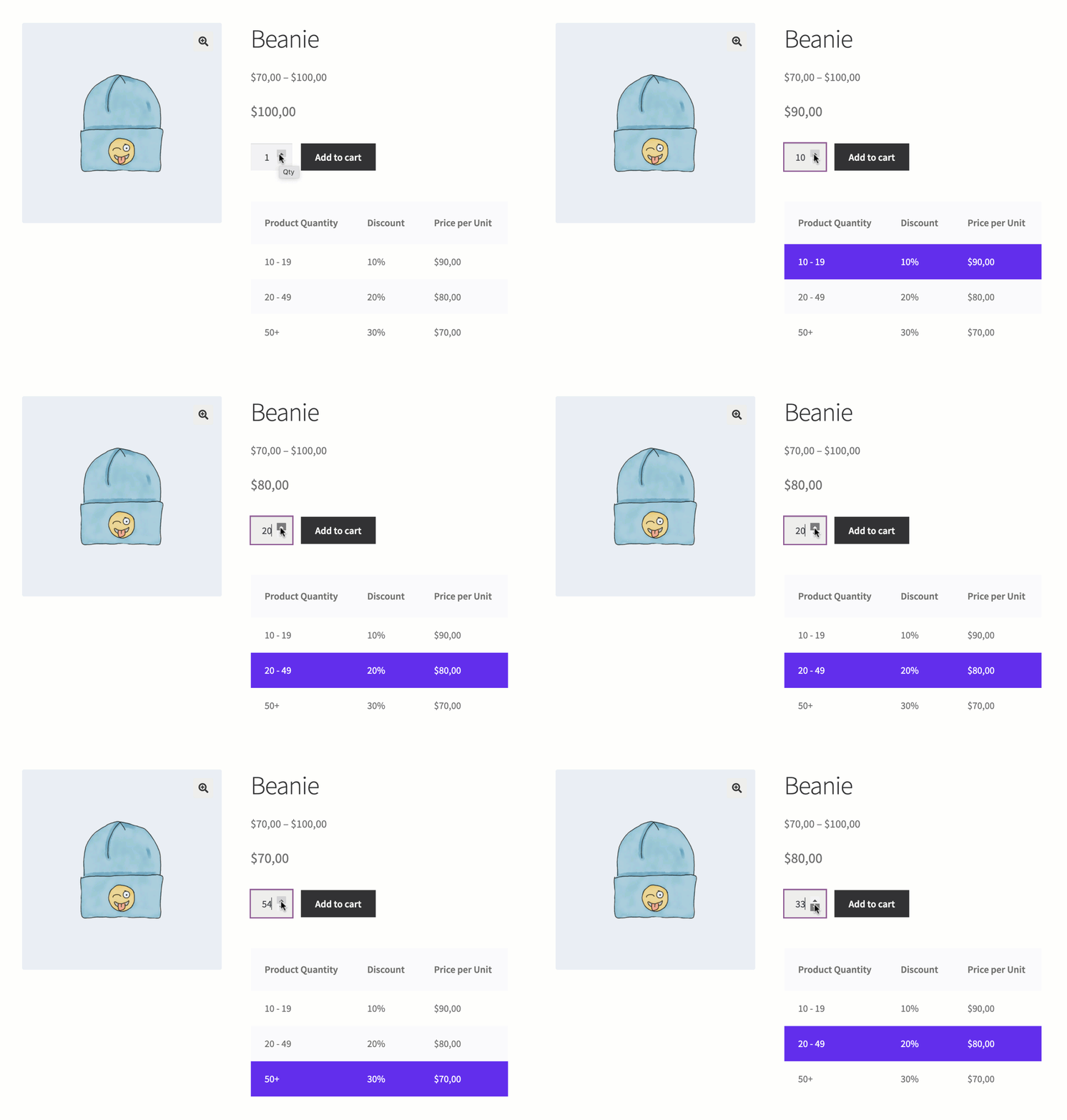
With tiered pricing the price per unit drops as the quantity rises. You might offer your wholesale price starting at 100 units, while still allowing a customer to buy fewer at the regular retail price. The buyer is never blocked at checkout, but there is a clear incentive to reach the threshold. For some stores this captures sales that a strict minimum would have turned away, while still steering most customers toward the order size you prefer. You can present the breakpoints automatically with an auto generated tiered pricing table on the product page.
Setting a minimum order with custom code
If you only need a single store wide minimum and prefer not to add a plugin, a code snippet will do the job. Add the following to your theme's functions.php file or a small custom plugin. If you are not sure where to put it, see the note on how to add a code snippet.
add_action( 'woocommerce_checkout_process', 'wc_minimum_order_amount' );
add_action( 'woocommerce_before_cart', 'wc_minimum_order_amount' );

function wc_minimum_order_amount() {
    // Set your minimum order value here
    $minimum = 250;

    if ( WC()->cart->total < $minimum ) {
        $message = sprintf(
            'Your current order total is %s. The minimum order to check out is %s.',
            wc_price( WC()->cart->total ),
            wc_price( $minimum )
        );

        if ( is_cart() ) {
            wc_print_notice( $message, 'error' );
        } else {
            wc_add_notice( $message, 'error' );
        }
    }
}
The two hooks matter. woocommerce_before_cart shows the notice on the cart page, and woocommerce_checkout_process blocks the order from being placed on the checkout page, so the rule is enforced in both places. To turn this into a maximum instead, change the comparison from < to > and adjust the message.
The limitation of the code route is everything this guide covered earlier. A snippet handles one global figure well, but per group, per user, per product, and per category logic, along with maximums and payment method rules, quickly becomes a large amount of code to write and maintain. That is the point at which a rules based plugin saves time.
Frequently asked questions
Can I set a minimum order amount in WooCommerce without a plugin? Yes, with a code snippet like the one above. It works for a single store wide minimum. For different minimums per customer or product, a plugin is far more practical.
How do I set a minimum order quantity rather than a value? Create a minimum order rule and choose Quantity as the basis. You can apply it to the whole cart, a category, or a single product, including individual variations.
Can I set a minimum order only for wholesale customers? Yes. Assign wholesale buyers to a customer group and attach the minimum to that group. Retail visitors are unaffected, and the rule applies automatically once a wholesale customer logs in.
Can I require products to be bought in packs of a fixed size? Yes. Use the step quantity field on the product page, or a "Required Multiple" rule, to force quantities into multiples such as 6 or 12.
Can I set both a minimum and a maximum at the same time? Yes. Minimum and maximum rules can run together, and rules stack, so checkout is allowed only when all of them are satisfied.
How do I stop customers from reaching checkout when the cart is invalid? The notices block order placement by default. If you also want to disable the checkout button while errors are present, see the guide on disabling the proceed to checkout button.
Summary
WooCommerce has no native minimum order setting, but the gap is easy to fill. A code snippet covers a single global amount, while B2BKing handles the full range of needs: minimum and maximum rules for value or quantity, applied per product, category, user, or group, plus package quantities, payment method limits, and tiered pricing as a softer alternative. Start with a modest threshold, align it with your free shipping where it makes sense, and adjust as you see how it affects your average order value and checkout completion. For the other parts of a wholesale setup, see our complete guide to WooCommerce B2B.

