
WooCommerce Wholesale Prices: The Definitive Guide
WooCommerce is a powerful ecommerce platform, but it doesn't include wholesale pricing functionality out of the box. Whether you're a store owner selling to both retail and wholesale customers, a developer building a B2B project, or a WP agency setting up a client's store, this guide covers everything you need to know about implementing wholesale prices in WooCommerce.
We'll walk through every approach: from setting simple group-based prices and tiered structures, to per-customer price lists, hidden pricing, quote-based selling, and more. For everything beyond pricing, see our WooCommerce B2B guide.
1. Setting Wholesale Prices with B2BKing
B2BKing is a complete wholesale and B2B solution for WooCommerce, with over 137 features covering business registration, wholesale pricing, tax exemptions, product visibility control, and much more. When it comes to pricing specifically, B2BKing gives you multiple ways to define what each customer or customer group pays, and they all work together.
Let's go through them one by one.
1.1 Group-Based Pricing Directly on the Product Page
The most straightforward method is setting wholesale prices right on the product editing screen.
Here's how it works:
First, navigate to the B2BKing groups panel and create your business groups (for example, "Wholesale," "Premium Wholesale," "Distributors," etc.).
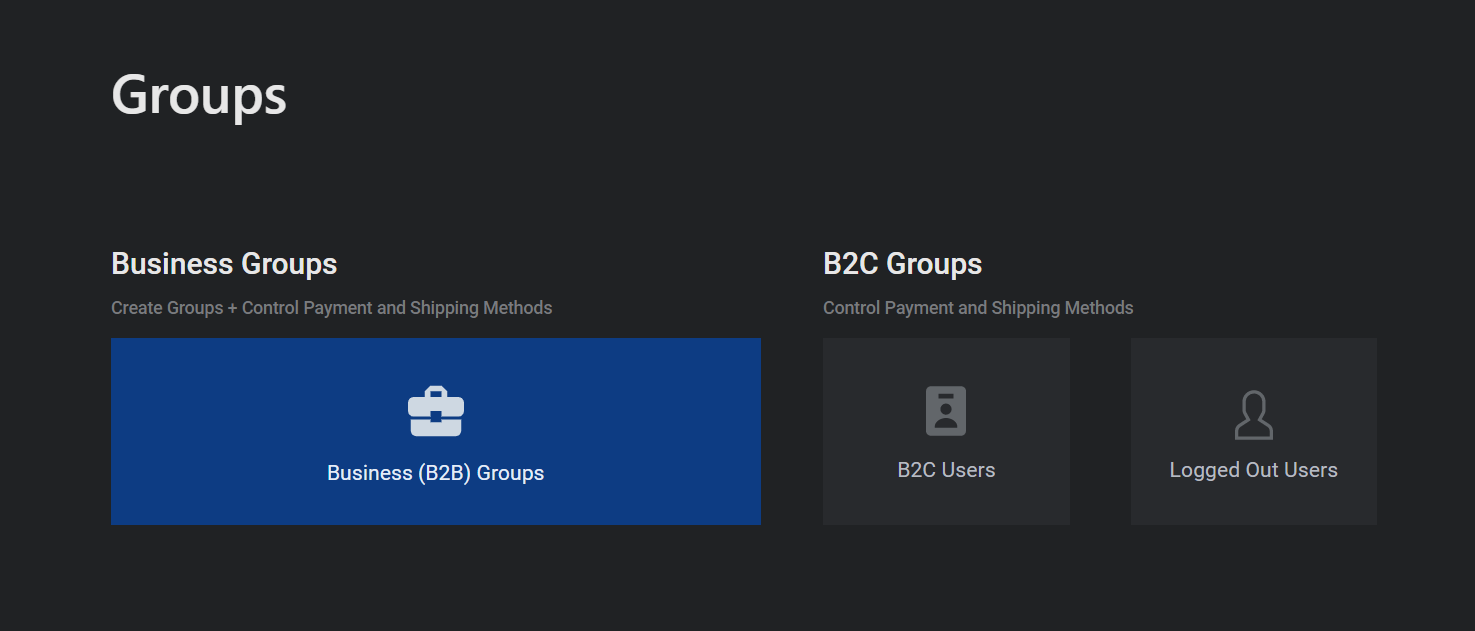
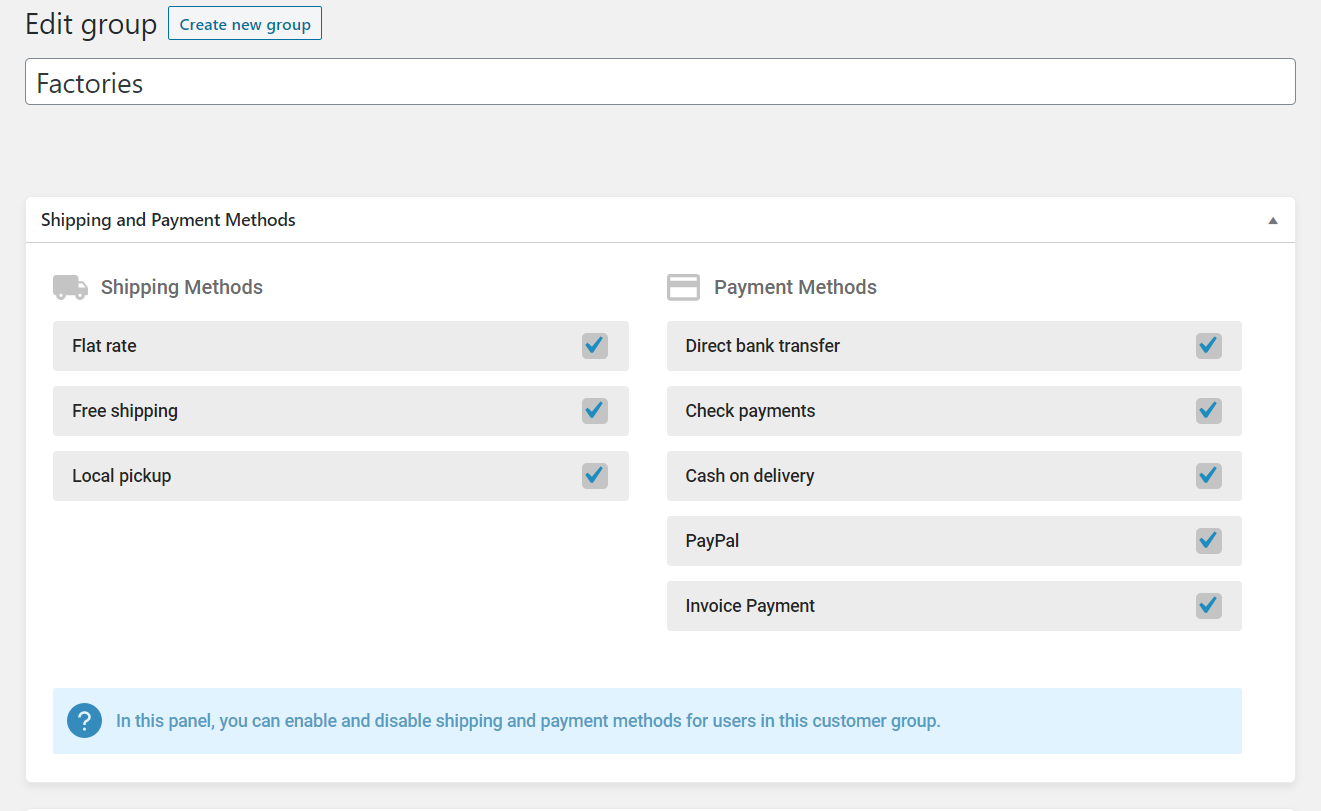
For each group, you can also control which payment and shipping methods are available.
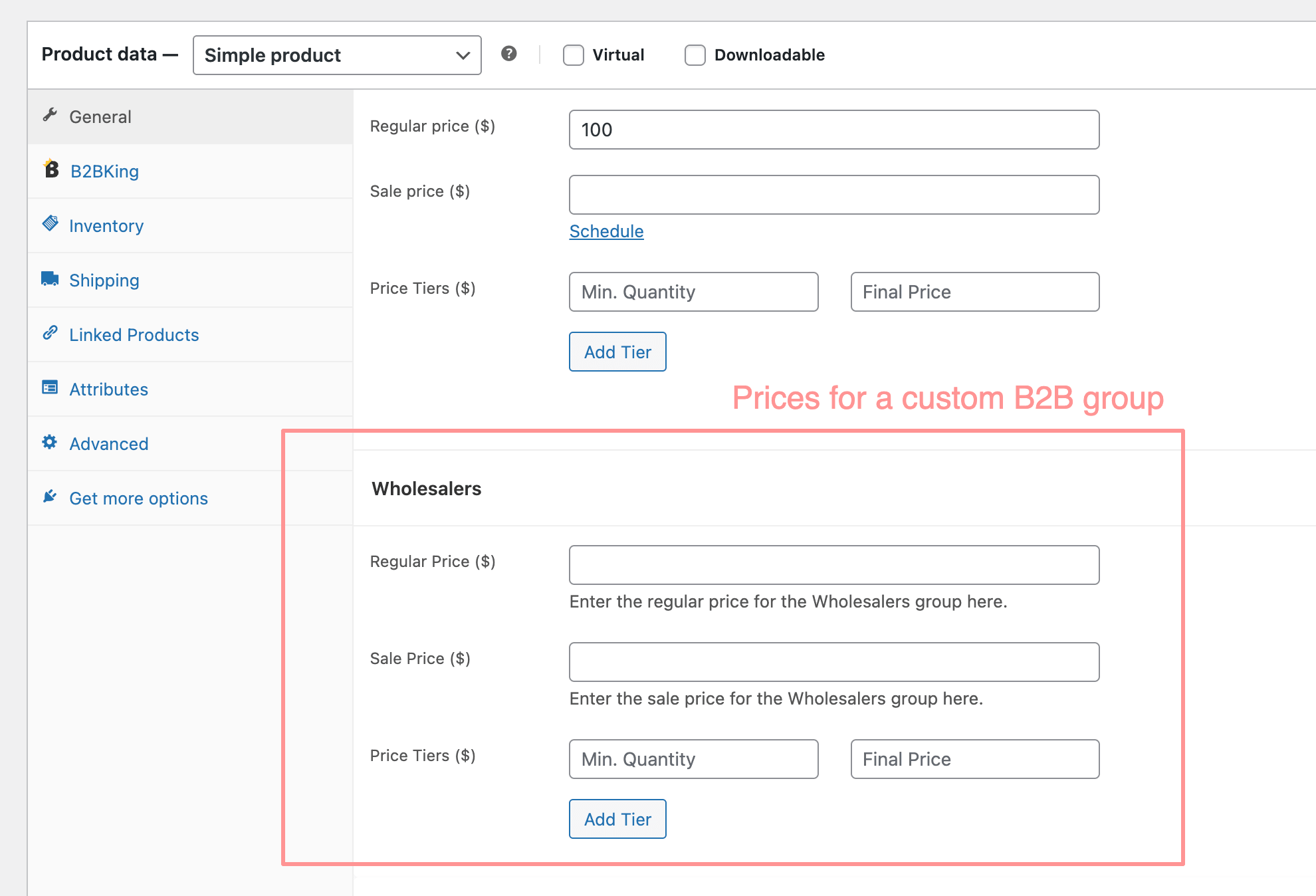
Once your groups are set up, new price fields automatically appear on every product and variation in your WooCommerce backend. You simply type in the wholesale price for each group, save, and you're done.
This method is ideal when you have a manageable product catalog and want full, manual control over each product's wholesale price.
1.2 Importing and Exporting Prices via CSV
If you have hundreds or thousands of products, editing prices one by one isn't practical. That's where CSV import and export comes in.
B2BKing stores wholesale prices as product metadata, which makes the plugin fully compatible with any import/export tool, including the built-in WooCommerce importer, WP All Import, or any similar solution.
On top of that, B2BKing includes its own dedicated import/export tool designed specifically for wholesale pricing:
- Export your current price list using the download button.
- Edit the prices directly in the CSV file (or in Excel / Google Sheets).
- Import the modified file back into B2BKing.
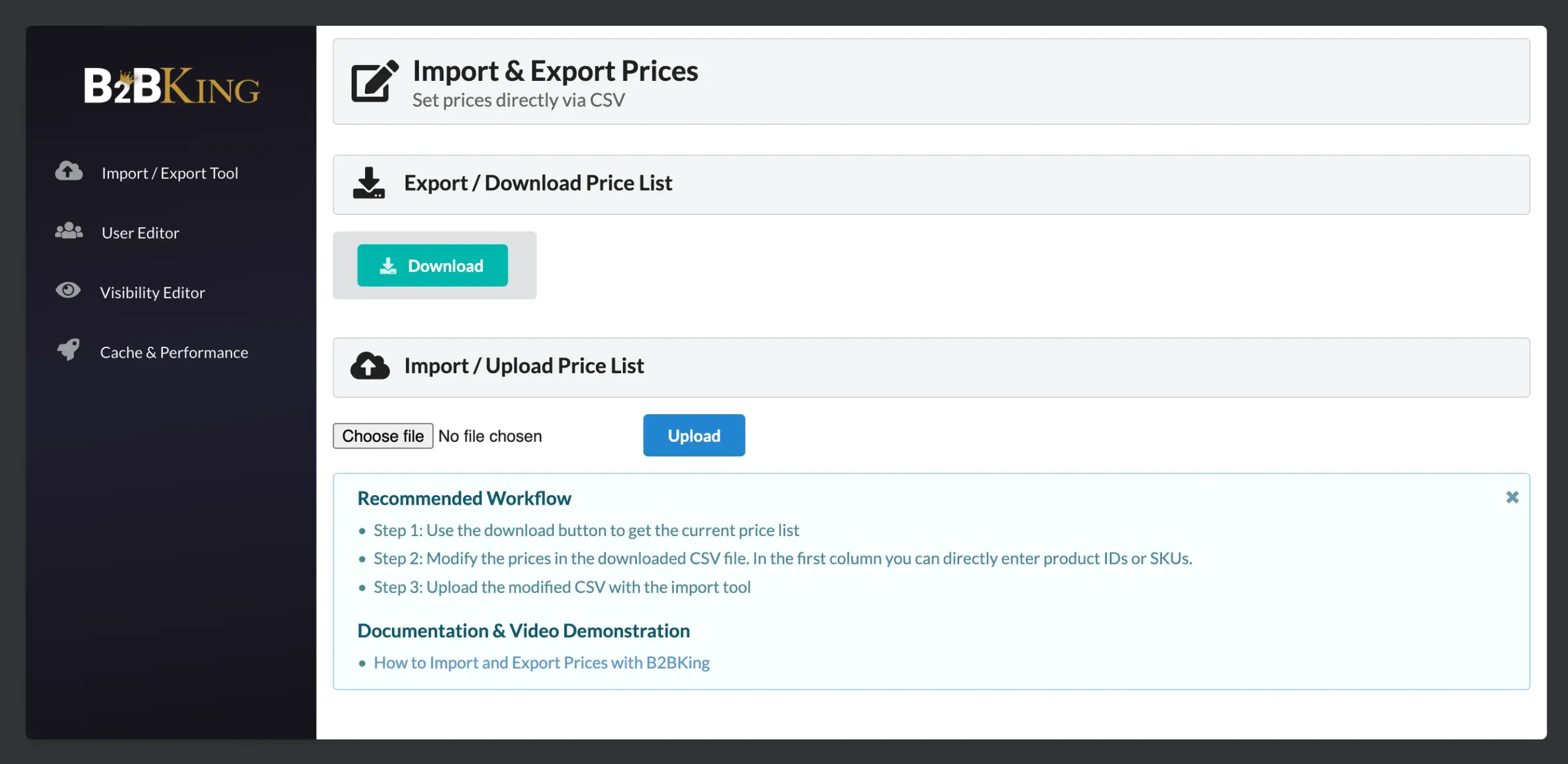
This workflow is especially useful when you need to update prices in bulk. For example, applying a supplier price increase across your entire catalog.
1.3 Discount Rules (Product, Category, and Global)
Instead of setting a fixed wholesale price for every product, you can create dynamic discount rules. These rules automatically calculate the discounted price based on a percentage or fixed amount off the retail price.
Discount rules can be applied at three levels:
- Global: a blanket discount on everything in the store for a specific group.
- Category / Tag / Brand: a discount on all products within one or more categories.
- Product or variation: a discount targeting specific items.
For example, you could create a rule that gives your "Wholesale" group a 30% discount on everything in the "Electronics" category, while your "Distributors" group gets 40%.
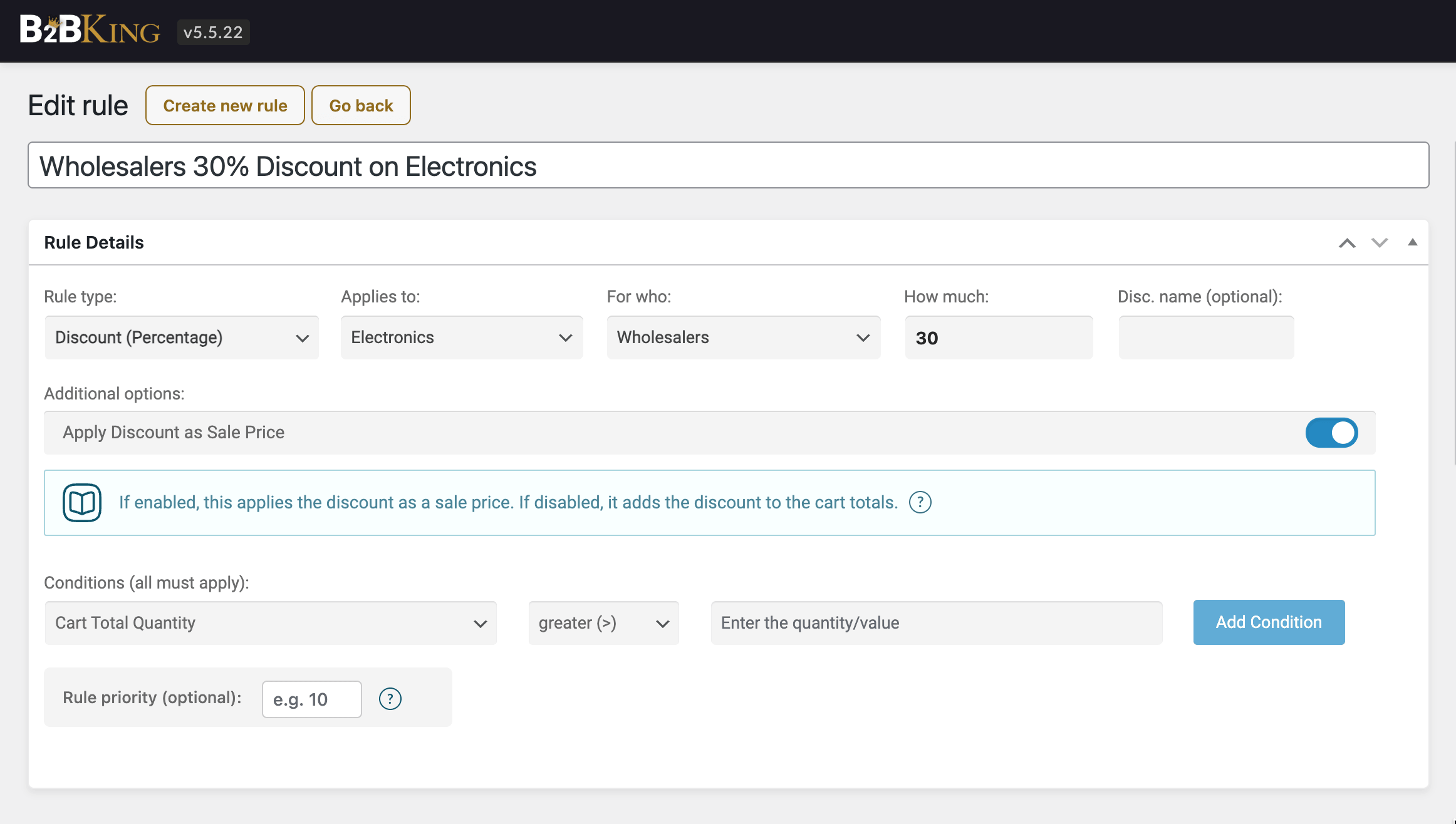
You also have the option to control where the discount is displayed through the "Apply discount as Sale Price" setting. This lets you choose whether the discounted price appears only in the cart, or directly on the product page as well.
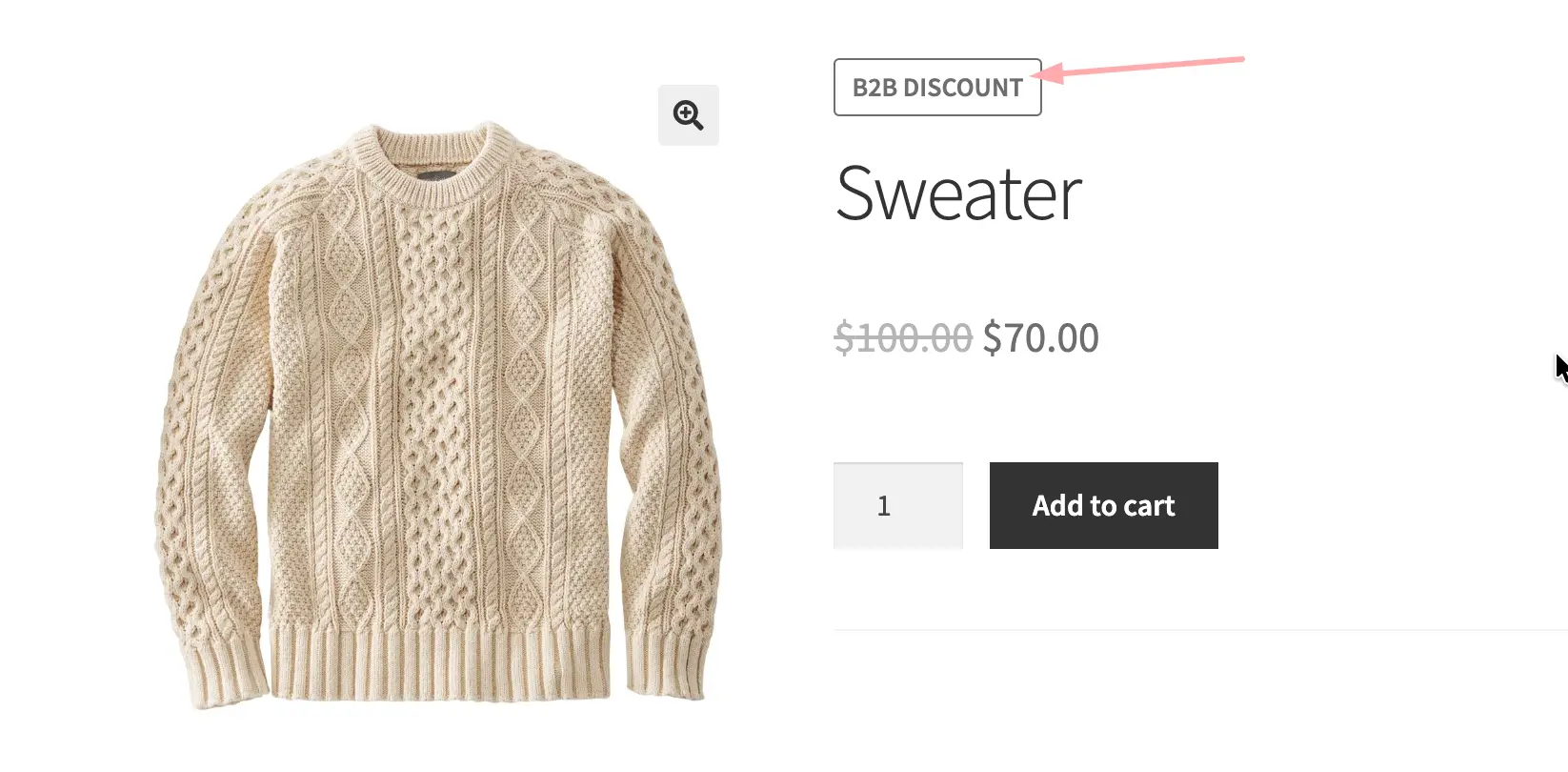
When shown on the product page, a discount name (e.g., "B2B Discount") can also be displayed alongside the price, so wholesale customers can see the savings they're getting.
1.4 Bulk Discounts Based on Quantity or Order Value
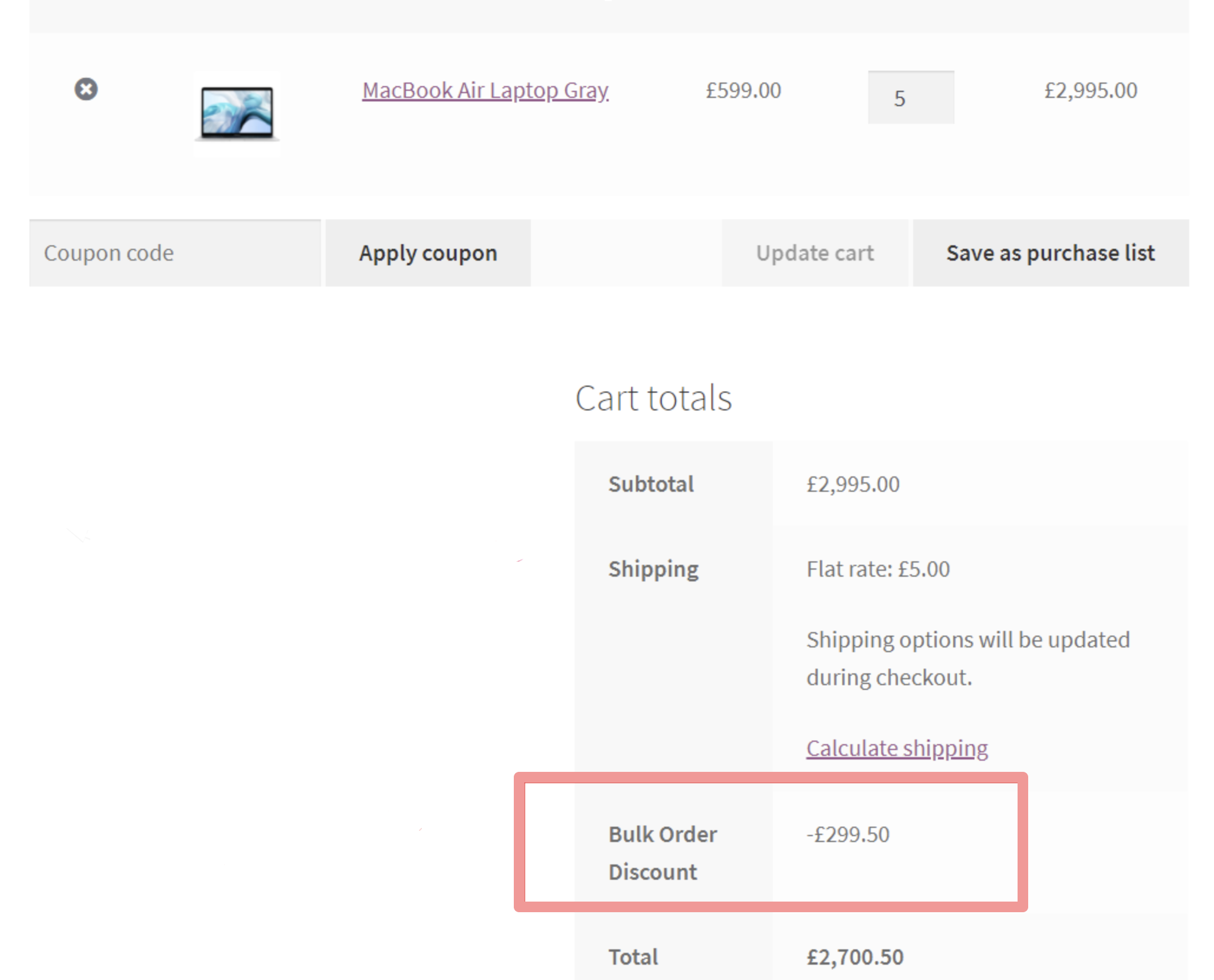
B2BKing also supports quantity-based and value-based discount conditions. This means you can offer better pricing as customers order more, which is a classic wholesale incentive.
For example, you might create a rule like:
"10% discount for all wholesale users when their order total reaches $1,000 or more."
Conditions can be based on the quantity of a specific product, the total quantity across a category, or the overall cart value, giving you flexibility to structure incentives however you like.
1.5 Tiered Pricing Structures
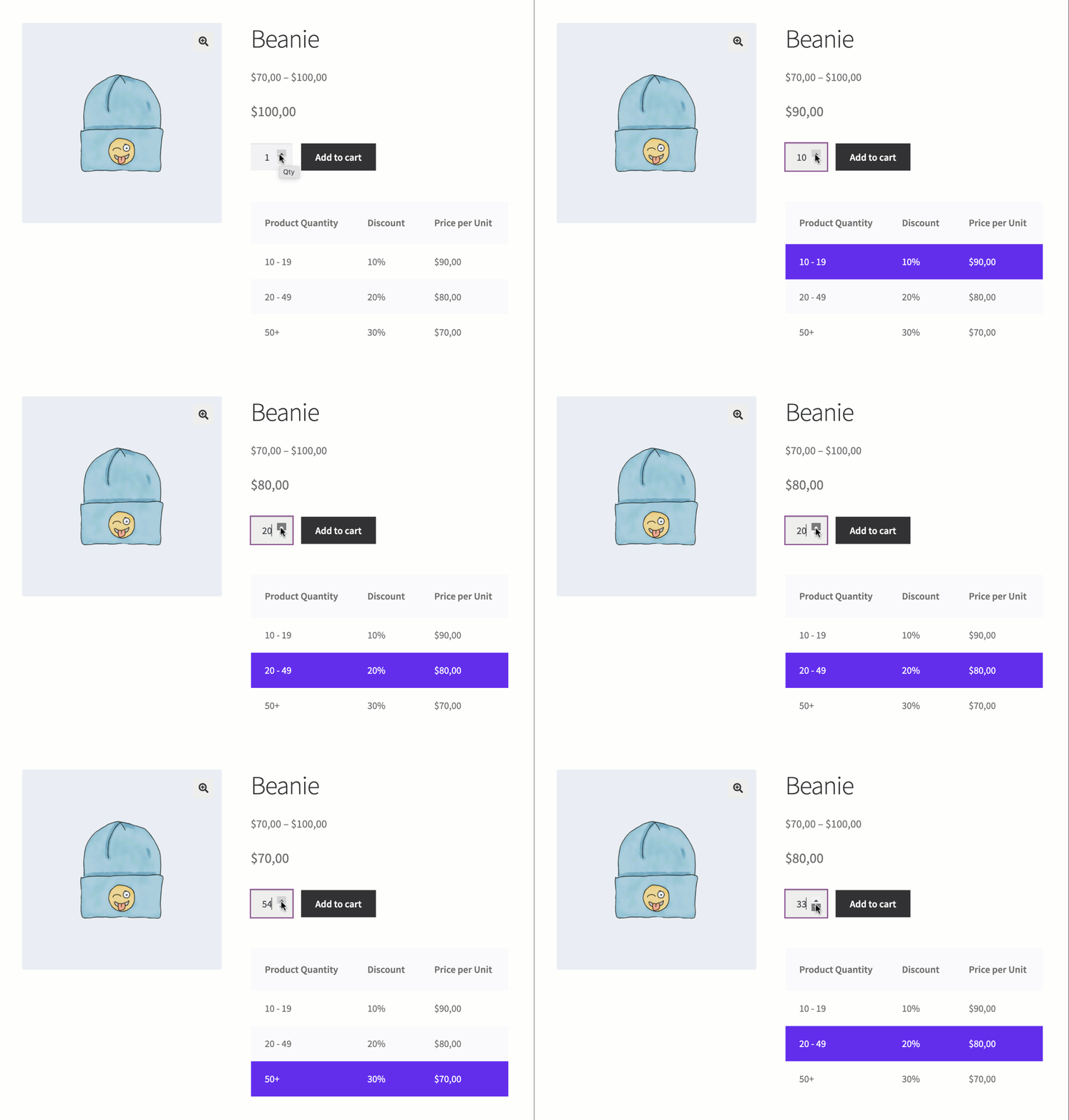
Taking quantity-based pricing a step further, you can build full tiered pricing tables, a staple of wholesale and B2B commerce.
For example:
| Quantity | Price Per Unit |
|---|---|
| Under 200 pieces | $1.00 |
| 200–1,000 pieces | $0.95 |
| Over 1,000 pieces | $0.80 |
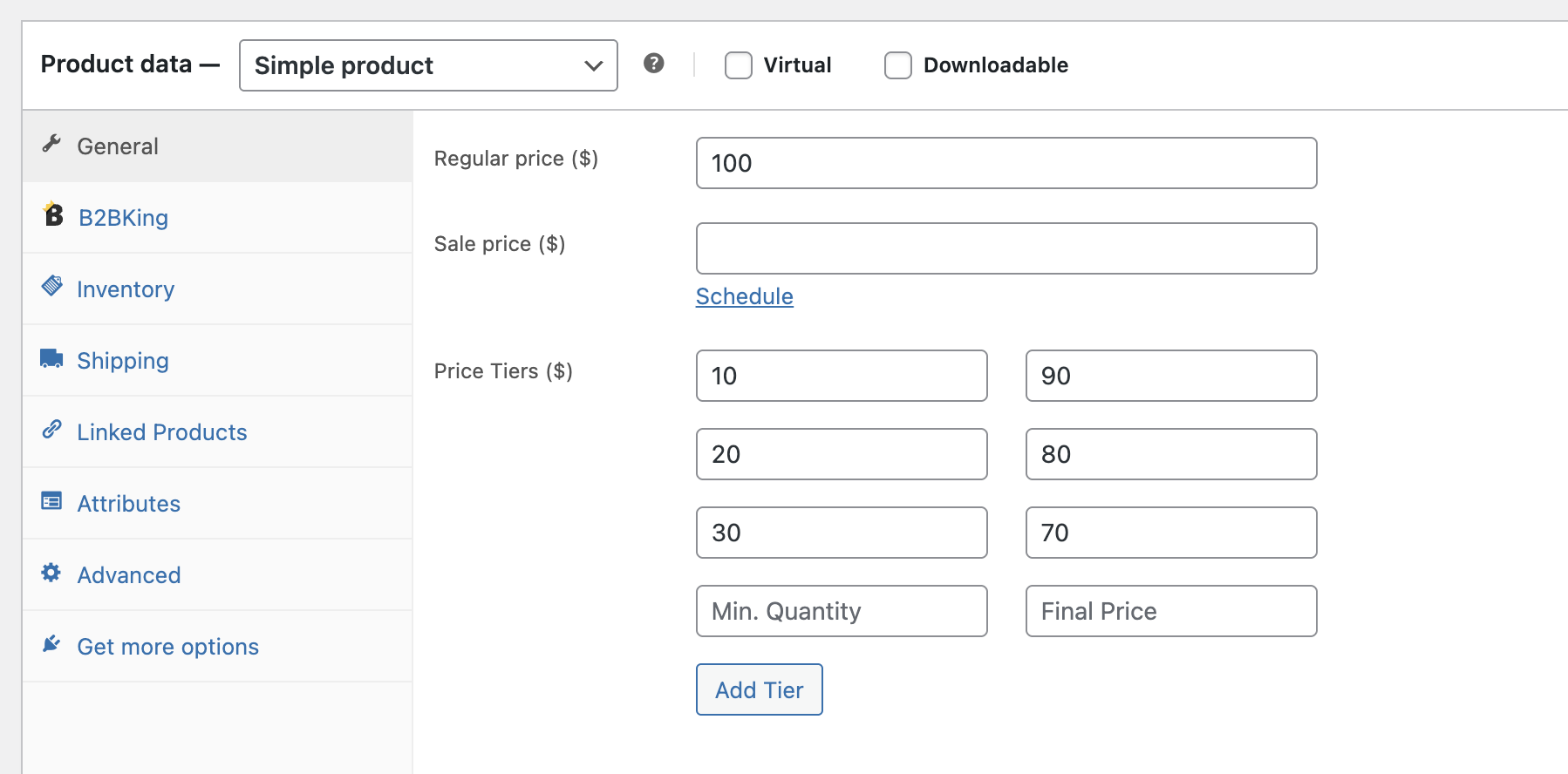
Tiered pricing can be configured directly when editing each product:
Tiered pricing can also be configured in bulk for multiple products or categories at once, by creating a "tiered price" dynamic rule.
B2BKing auto-generates a tiered pricing table on the frontend, so customers can see exactly how the price changes with quantity. No extra configuration needed.
1.6 Raise Price Rules
Not every B2B scenario involves discounts. Sometimes you need to go in the other direction.
Raise Price rules let you start from a base cost and add a markup for each group. This is particularly useful for distributors and resellers, where you want to define a base price and then control each group's margin separately.
For example, if your base product price is $100:
| Group | Markup | Price Seen |
|---|---|---|
| Resellers | +10% | $110 |
| Premium Resellers | +5% | $105 |
| Standard Wholesale | +20% | $120 |
This approach is cleaner and easier to maintain than manually entering a different price for every group on every product. When your base cost changes, the markups adjust automatically.
Raise Price rules work just like discount rules. You create a dynamic rule, choose "Raise Price" as the type, set the percentage or fixed amount, and assign it to the relevant group or user.
2. Individual Customer Pricing (Per-User Price Lists)
One of the most common requests in wholesale commerce is the ability to set different prices for different customers, not just for groups, but for individual users. This is especially important in industries where prices are negotiated on a per-account basis.
B2BKing supports this in two ways:
2.1 Customer Price Lists (Recommended)
The dedicated Customer Price Lists feature is the recommended way to set per-customer prices in B2BKing. It provides a full graphical interface for creating, managing, importing, and exporting per-customer price lists, all from within the B2BKing dashboard.
For each customer and product, you can configure a regular price, a sale price, and quantity-based price tiers. Prices can be managed in three ways:
- Per product, from the product edit page, with a panel showing all customers who have a custom price for that product.
- Per customer, from B2BKing → Customers → [customer] → Pricing tab, showing all custom-priced products for that customer.
- In bulk, by downloading a customer-specific CSV and re-uploading it through the WooCommerce importer.
This approach scales well to hundreds of customers across hundreds of products. Under the hood, prices are stored as product metadata, so performance is identical to a raw metadata import, but with a full UI on top. The metadata fields are also documented for teams that need to integrate with an ERP, PIM, or custom script.
For full details, including the CSV format and metadata structure, see Customer Price Lists.
2.2 Fixed Price Rules (Lightweight Alternative)
For one-off situations or a small number of custom-priced products, you can create a Fixed Price dynamic rule and assign it to an individual user instead of a group. You select the product, set the price, and choose the customer.
If you need to create many individual rules at once, for example when onboarding a large customer with negotiated pricing across dozens of products, Fixed Price rules can also be created in bulk via the WP REST API, making it easy to generate per-user pricing programmatically from an external system, ERP, or custom script.
For catalog-scale per-customer pricing, however, Customer Price Lists (above) is the better fit.
3. Controlling Price Visibility
In many B2B scenarios, you don't want everyone to see your wholesale prices. B2BKing gives you granular control over who can see what.
3.1 Hiding Prices for Logged-Out Users
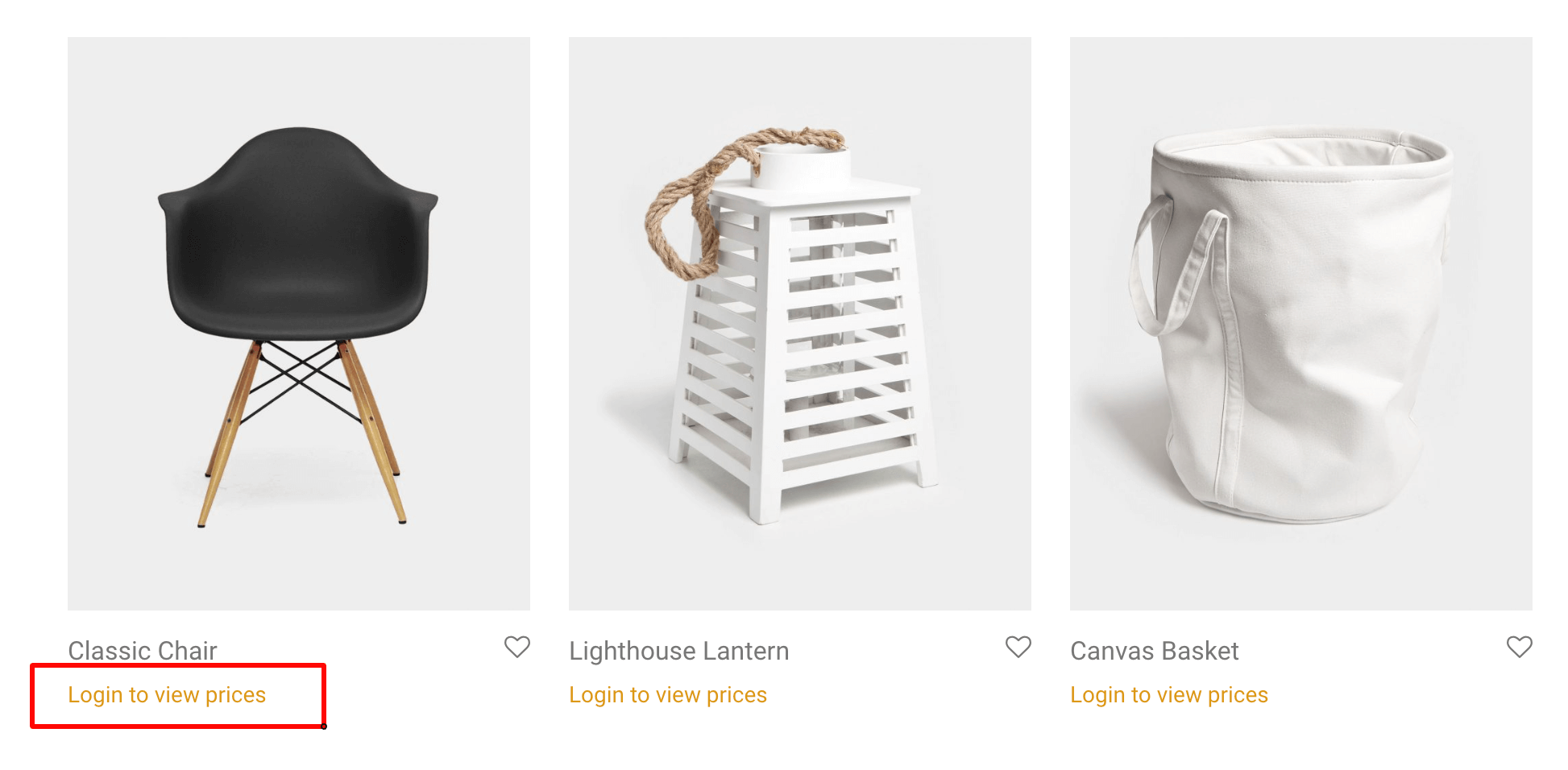
You can configure B2BKing to hide all prices for visitors who aren't logged in. Instead of a price, customers will see a message prompting them to log in or register, ensuring that only approved accounts have access to your pricing.
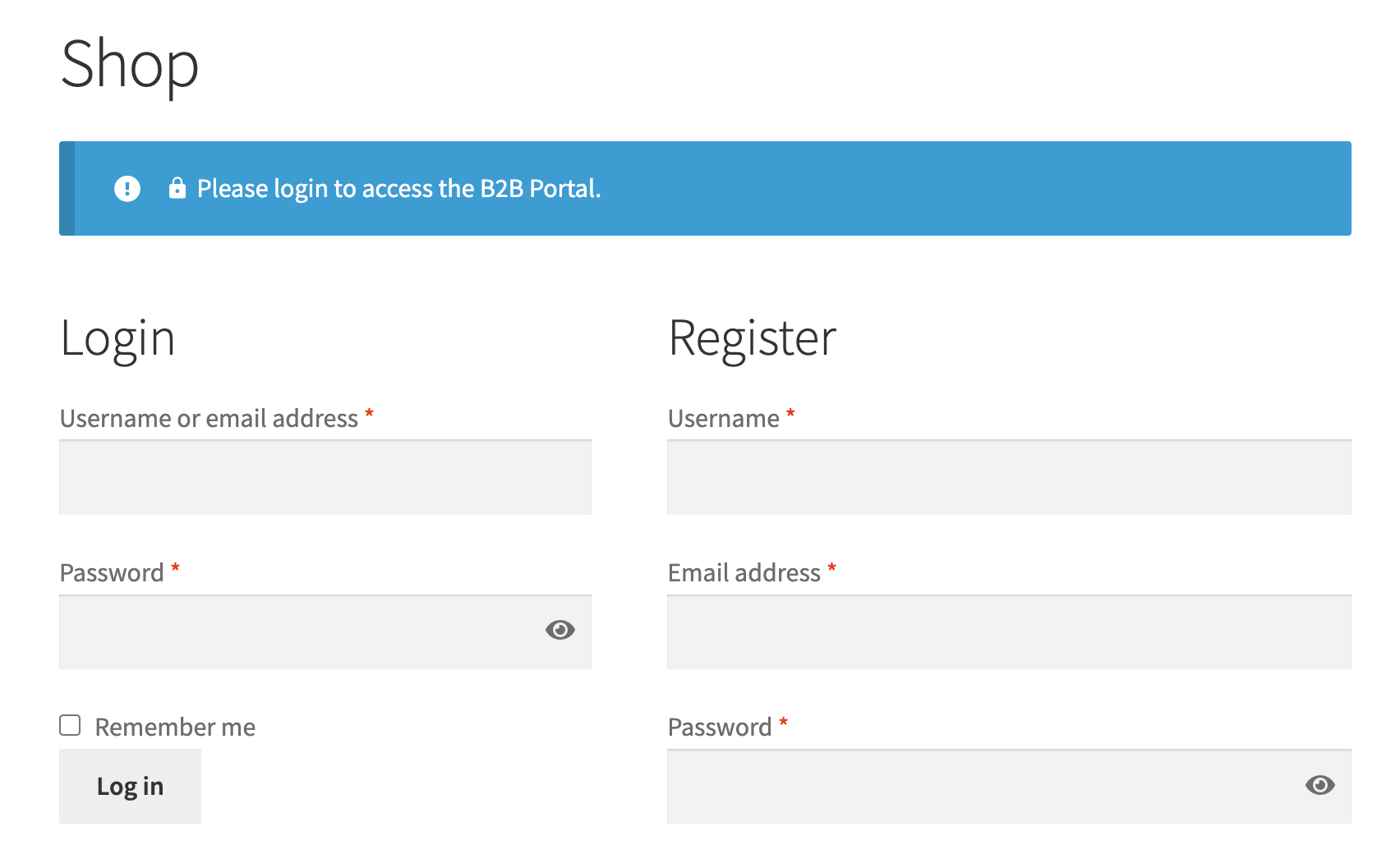
You can take this even further and hide the entire shop from logged-out users, restricting your store exclusively to registered and approved business customers.
Read more: Guest Access Restriction Options
3.2 Hidden Price Rules for Specific Groups
Beyond the global logged-in/logged-out distinction, you can use Hidden Price rules to control visibility on a per-group basis.
For example:
- Show prices only to approved B2B reseller accounts.
- Hide prices from retail customers while keeping them visible to wholesale groups.
- Show different price visibility depending on the customer's approval status or group membership.
This level of control is especially useful for businesses that serve mixed audiences (B2B and B2C) from a single WooCommerce store. It ensures that your negotiated wholesale pricing stays confidential and is only visible to the customers who should see it.
3.3 Displaying Both Retail (MSRP) and B2B Prices
A particularly useful feature for wholesale buyers: B2BKing can display both the retail (MSRP) price and the customer's B2B price side by side on the product page.
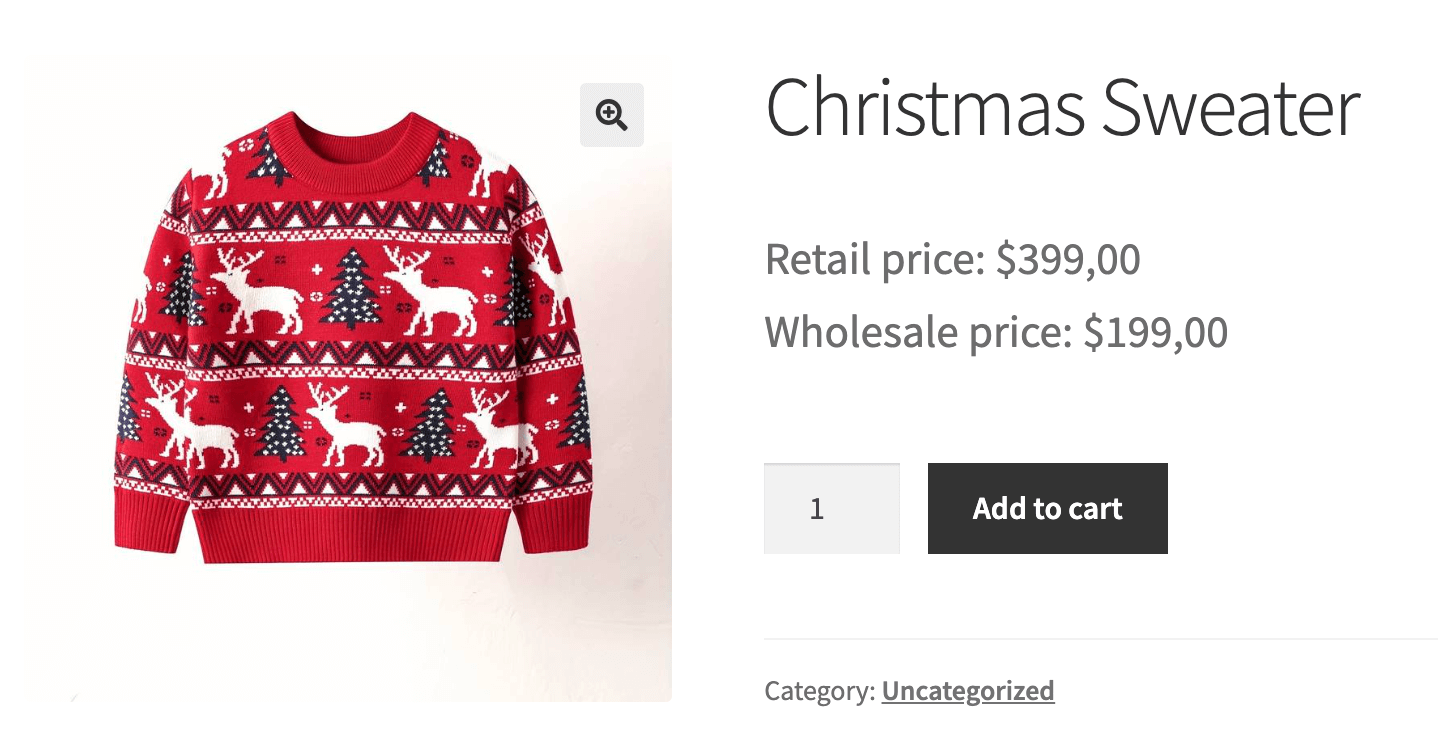
This lets your wholesale customers instantly see how their price compares to the standard retail price, reinforcing the value of their B2B relationship and making it easy for resellers to calculate their own margins. It's a small touch that makes a difference in the buying experience.
4. Request a Quote System
For some products or business relationships, you may not want to display a fixed price at all. Instead, you want customers to request a quote, and then respond with a custom offer.
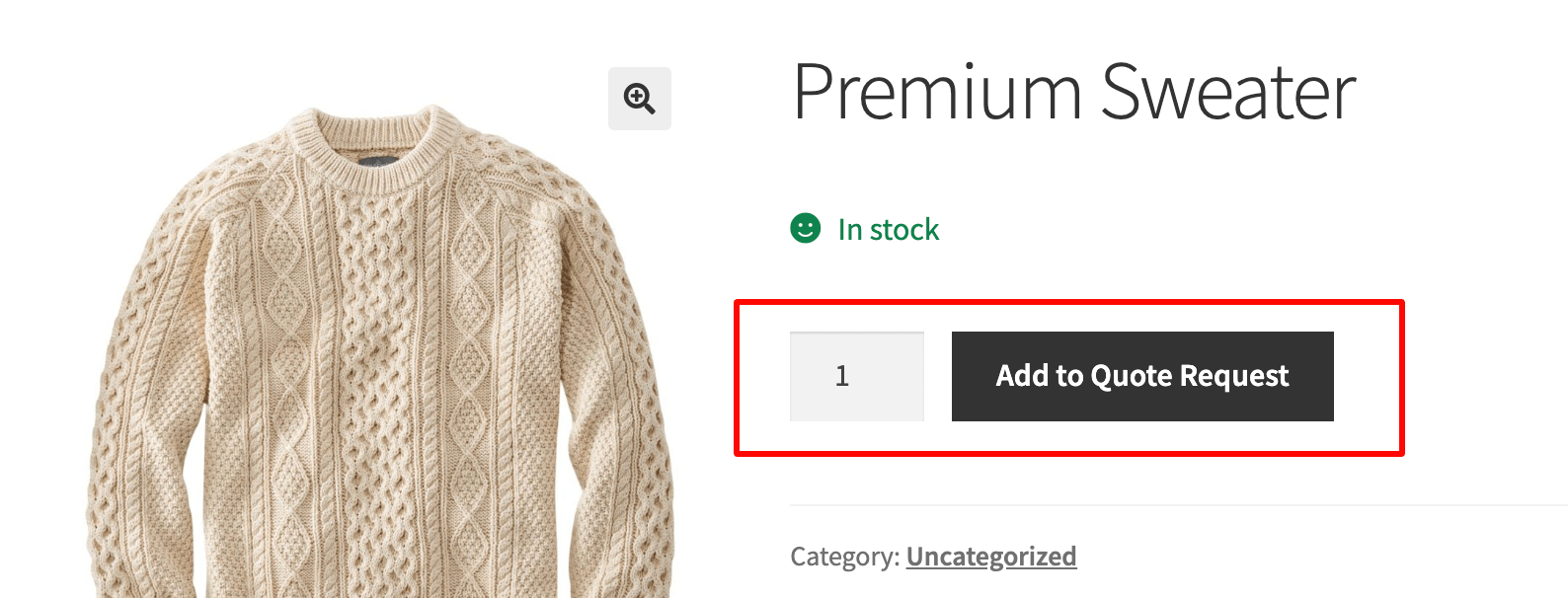
B2BKing includes a full Request a Quote system:
- Hide prices on specific products (or for specific groups) and replace the "Add to Cart" button with a "Request a Quote" button.
- Customers submit a quote request specifying the products and quantities they're interested in.
- You (the store admin) review the request and respond with a custom offer, including specific prices, quantities, and terms.
- The customer receives the offer and can purchase directly from it with a single click, at the quoted price.
This is ideal for high-value items, custom orders, or any situation where pricing depends on negotiation. Combined with B2BKing's built-in messaging system, the entire quote conversation stays organized within your WooCommerce dashboard, so there's no need for back-and-forth emails.
5. Summary: Choosing the Right Pricing Approach
B2BKing is designed so that all pricing methods work together. You're not locked into a single approach; you can mix and match depending on your business needs.
Here's a quick reference:
| Scenario | Recommended Approach |
|---|---|
| Same wholesale price for an entire group | Group-based pricing on product page or CSV import |
| Percentage discount for a group | Dynamic discount rule (global, category, or product) |
| Better prices at higher quantities | Tiered pricing with Fixed Price rules |
| Markup from a base cost | Raise Price rules |
| Unique prices per individual customer | User-level metadata (or Fixed Price rules for small scale) |
| Prices visible only to approved B2B users | Hidden Price rules + login requirement |
| No fixed price, negotiation-based | Request a Quote system |
| Wholesale customers need to see their savings | MSRP + B2B price display |
6. Developer Reference: Custom Coding Prices
If you're a developer who wants to understand the underlying WooCommerce pricing hooks, or if you're building a fully custom solution, this section covers the key filters and actions involved in modifying WooCommerce prices programmatically.
Generating the Regular Price Dynamically
To modify the regular price, use these two hooks:
woocommerce_product_get_regular_pricefor simple productswoocommerce_product_variation_get_regular_pricefor variable products
add_filter( 'woocommerce_product_get_regular_price', 'custom_dynamic_regular_price', 9999, 2 );
add_filter( 'woocommerce_product_variation_get_regular_price', 'custom_dynamic_regular_price', 9999, 2 );

function custom_dynamic_regular_price( $regular_price, $product ){
    // Your pricing logic here
    return $regular_price;
}
Generating the Sale Price Dynamically
The sale price requires more filters to cover all display contexts:
woocommerce_product_get_sale_pricewoocommerce_product_variation_get_sale_pricewoocommerce_variation_prices_pricewoocommerce_variation_prices_sale_price
These can be hooked in the same way as the regular price filters above.
Clearing the WooCommerce Price Cache
When working with variable products, WooCommerce caches variation prices aggressively. If you don't clear the cache, price changes won't appear until the cache expires. Use the woocommerce_get_variation_prices_hash filter:
add_filter( 'woocommerce_get_variation_prices_hash', 'custom_variation_price_hash', 99, 1 );

function custom_variation_price_hash( $hash ) {
    if ( $custom_pricing_logic ) {
        // Force cache refresh
        WC_Cache_Helper::get_transient_version( 'product', true );
    }
    $hash[] = get_current_user_id();
    return $hash;
}
Adding the current user ID to the hash ensures that each user gets their own cached version of the prices. This is critical when different users see different pricing.
Displaying the Formatted Sale Price
To display the original and discounted price together (with a strikethrough on the original), use the woocommerce_get_price_html filter combined with the wc_format_sale_price() function:
add_filter( 'woocommerce_get_price_html', 'custom_display_sale_price', 9999, 2 );

function custom_display_sale_price( $price_html, $product ) {
    // Your pricing logic here

    $price_html = wc_format_sale_price(
        wc_get_price_to_display( $product, array( 'price' => $product->get_regular_price() ) ),
        wc_get_price_to_display( $product, array( 'price' => $product->get_sale_price() ) )
    ) . $product->get_price_suffix();

    return $price_html;
}
Setting the Price in the Cart
To ensure the correct wholesale price carries through to the cart and checkout, set the price before totals are calculated using the woocommerce_before_calculate_totals action hook.
Updating the Minicart
Prices displayed in the WooCommerce minicart are rendered separately and need to be updated using the woocommerce_cart_item_price filter.
B2BKing is available at kingsplugins.com. To see how it compares with the alternatives, read our roundup of the best WooCommerce B2B plugins.
For full documentation, visit b2bkingplugin.com/docs.

