
WooCommerce Payment Methods by User Role: How to Show or Hide Payment Gateways
WooCommerce stores that sell to more than one type of customer rarely want everyone to pay the same way. A retail shopper expects to pay by card or PayPal and be done in thirty seconds. A wholesale buyer placing a $12,000 order expects bank transfer, or an invoice they can settle in thirty days. A reseller who signed up last week should not get those terms yet, while a distributor who has ordered monthly for five years may have negotiated a purchase order arrangement that nobody else has.
Can WooCommerce Show Different Payment Methods to Different Users?
Not on its own. Every payment method you enable is shown to every customer at checkout, whether they are a guest, a first-time retail buyer, or your largest account. There is no built-in setting to say "show invoice payment only to approved wholesale customers" or "hide PayPal for distributors."
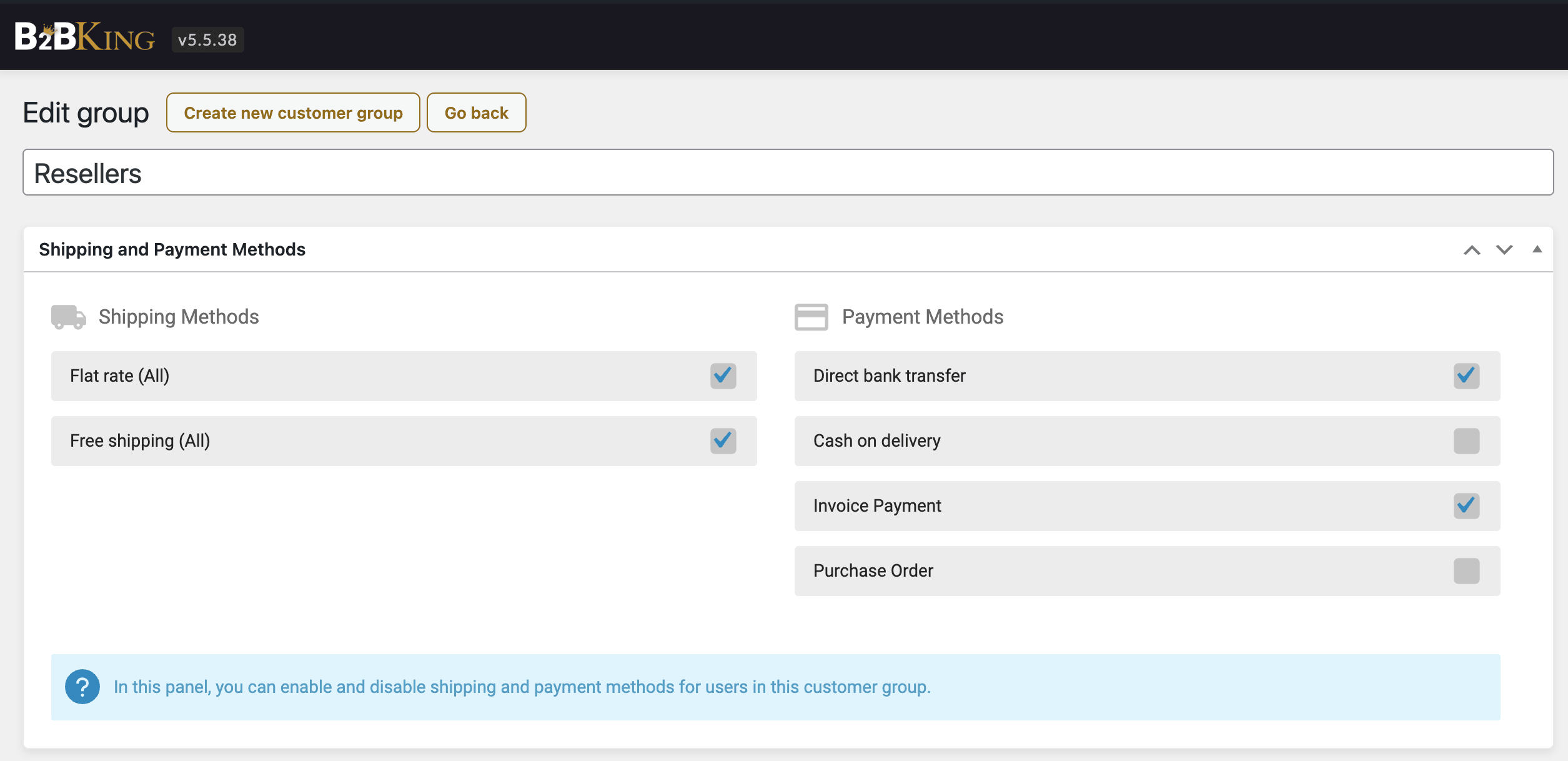
There are three ways to control WooCommerce payment methods by user role: custom PHP using the woocommerce_available_payment_gateways filter, a single-purpose payment restriction plugin that maps gateways to WordPress roles, or a B2B plugin that treats payment control as part of a wider wholesale setup. B2BKing takes the third approach. Each payment method can be enabled or disabled per customer group, for B2C customers, for logged-out visitors, and for individual customers, so a store can offer Invoice or Purchase Order payment only to approved wholesale buyers while retail customers continue to see cards and PayPal.
How Role-Based Payment Methods Traditionally Work
Most payment restriction solutions for WooCommerce are built on WordPress user roles. Roles were designed as a permissions system, and WooCommerce added two of its own, "customer" and "shop manager". Restriction plugins follow a simple model: create a custom role such as "wholesale_customer", assign your B2B buyers to it, and tick which gateways that role can see.
The Problem With Custom Roles
This works, but it carries the same side effect described in our guide to role-based pricing. Once a customer is moved off the standard "customer" role, other plugins may stop recognizing them as a customer at all. A tax plugin, a loyalty plugin, or a reporting tool that checks for that role will quietly skip your most valuable buyers, and you end up debugging a plugin that has nothing to do with payments.
B2BKing's Customer Groups
B2BKing uses customer groups instead. A customer keeps the standard "customer" role and is additionally placed in a group such as "Resellers" or "Distributors". Payment methods, shipping methods, prices, product visibility, and minimum order rules are all attached to the group, so the rest of the WooCommerce ecosystem continues to see a normal customer.
For stores that need real WordPress roles, usually because a third-party plugin only understands role-based logic, B2BKing can optionally sync each group to a matching WP role. This is opt-in and covered in the WP Roles with B2BKing documentation.
General Solutions
Before looking at plugins, it is worth understanding what WooCommerce can do natively and what a developer can do with a few lines of code.
What WooCommerce Does Natively
WooCommerce lets you enable, disable, and reorder payment gateways globally under WooCommerce → Settings → Payments. A few built-in gateways have narrow conditions of their own: Cash on Delivery can be limited to specific shipping methods or to virtual orders, and some gateways restrict themselves by currency or billing country. None of them can be limited by who the customer is. There is no per-role, per-group, or per-customer setting anywhere in core.
Payment Gateway by User Role with Custom Code
WooCommerce provides the woocommerce_available_payment_gateways filter, which runs every time the list of gateways is built for the cart and checkout. A basic role-based snippet looks like this:
add_filter('woocommerce_available_payment_gateways', 'custom_payment_gateways_by_role');

function custom_payment_gateways_by_role($gateways) {
    // Never touch the admin side
    if (is_admin()) {
        return $gateways;
    }

    // Logged-out visitors: cards and PayPal only
    if (!is_user_logged_in()) {
        unset($gateways['bacs']);   // Direct bank transfer
        unset($gateways['cheque']); // Check payments
        return $gateways;
    }

    $user = wp_get_current_user();

    if (in_array('wholesale_customer', (array) $user->roles)) {
        // Wholesale: hide card and PayPal gateways
        unset($gateways['stripe']);
        unset($gateways['ppcp-gateway']);
        unset($gateways['woocommerce_payments']);
    } else {
        // Everyone else: hide offline methods
        unset($gateways['bacs']);
        unset($gateways['cheque']);
    }

    return $gateways;
}
The Case for Using a Plugin
Writing the snippet is not the hard part. A developer (or an AI assistant) can do it in a few minutes. The hard part is what happens afterwards.
WooCommerce ships major changes every year: the block checkout, HPOS, the Store API, deprecated hooks. Payment plugins get rewritten and their gateway IDs change. A snippet written four years ago may keep running without errors and quietly stop doing what it was meant to do. The question is not whether that happens, but how many weeks pass before a customer tells you.
However, the largest problem is integration. Payment methods are one rule among many. A wholesale store also needs different prices, shipping, tax handling, minimum orders, and product visibility, and every one of them has to agree on who the customer is. Either you maintain a folder of separate snippets, each reading the customer's role its own way and each breaking independently, or you have one system where the customer's group is set once and every feature reads it. That is the cost a maintained all-in-one plugin exists to remove.
Different Payment Methods for Wholesale and Retail Customers
The scenarios below cover most of the requests we see from store owners. They are described in terms of what the store wants, since that is usually where the thinking starts.
Retail vs Wholesale
A hybrid store sells the same products to consumers and to businesses. Retail customers should see the fast options: credit card, PayPal, Apple Pay, Google Pay. Wholesale customers should see bank transfer and invoice payment, and often should not see card payment at all, because card fees on a large order are expensive and because a business buyer paying by card is usually an employee trying to expense something that should have gone through purchasing.
In B2BKing this is two settings: enable card gateways under B2C Users, and enable bank transfer and the Invoice gateway under the relevant business group.
Different B2B Customer Tiers
Payment terms are a form of credit, and most wholesalers extend credit gradually. A typical structure looks like this:
- New wholesale accounts: bank transfer in advance, or card. No terms yet.
- Established resellers: bank transfer and invoice with Net 30.
- Key distributors: purchase order with Net 60, plus everything above.
Each of these is a group in B2BKing with its own payment method checkboxes. Customers move between tiers either manually, when a sales rep decides an account has earned terms, or automatically through Group Rules, which promote a customer once their total or yearly spend crosses a threshold you set.
Logged-Out Visitors
Guests are a separate case and should be configured separately. Many wholesale stores do not allow guest checkout at all, in which case no payment method needs to be visible to logged-out users. Hybrid stores usually want guests to see the same card options as retail customers. B2BKing keeps the Logged Out Users panel separate from the B2C Users panel precisely because these two settings are so often different.
Individual Customer Exceptions
Groups cover most cases, but real accounts have real exceptions. A distributor who is sixty days late on two invoices needs to lose invoice access without being moved out of their group and losing their pricing. A long-standing retail customer who buys in unusual volume might be granted bank transfer even though no other retail customer has it.
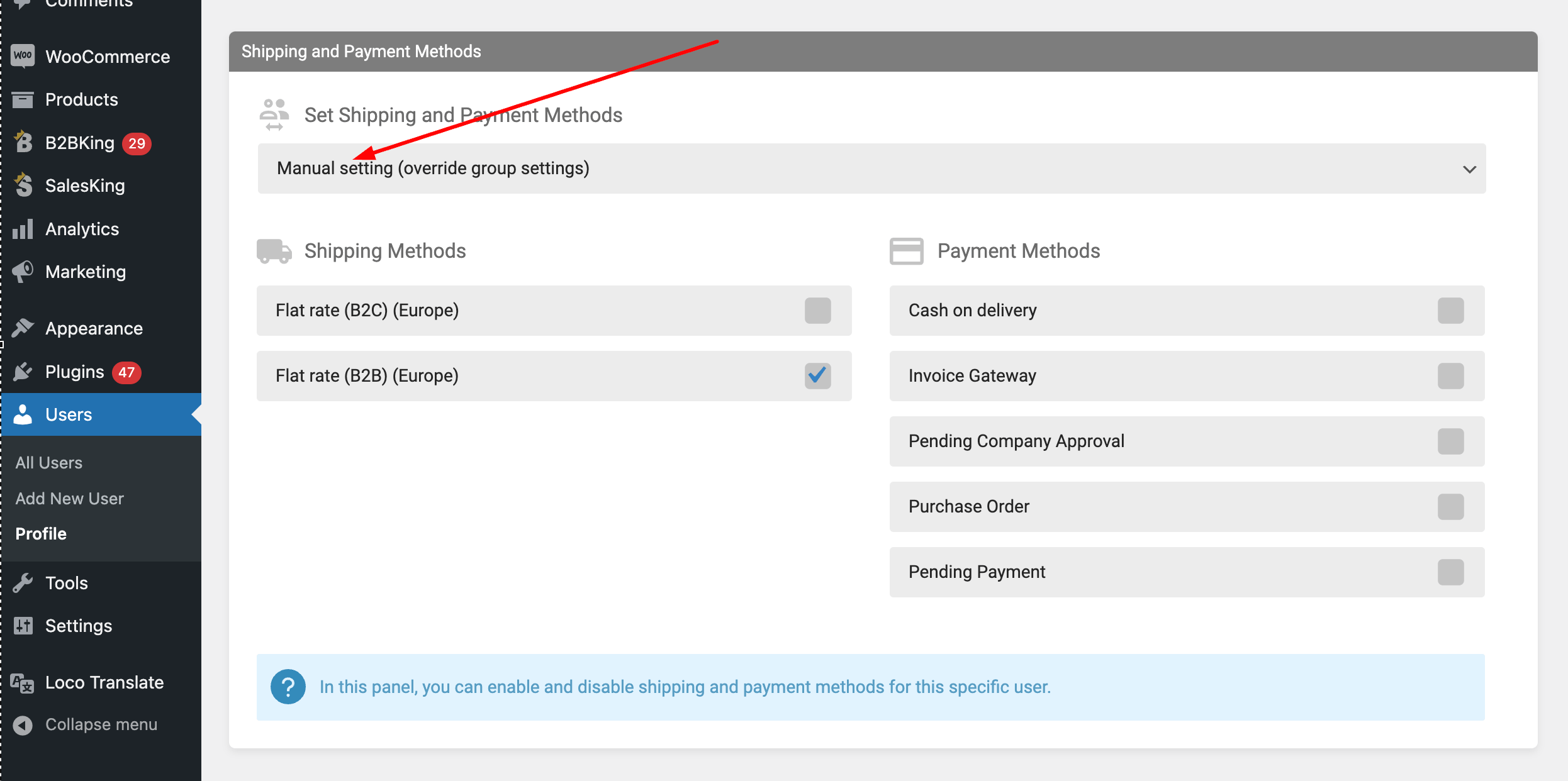
B2BKing handles this on the individual user profile. The shipping and payment methods dropdown offers a "Manual setting" option that overrides the group configuration for that one customer. This is the feature that separates a B2B plugin from a role-based payment plugin: roles are all-or-nothing, while accounts are not.
How to Hide Payment Methods by User Role in B2BKing
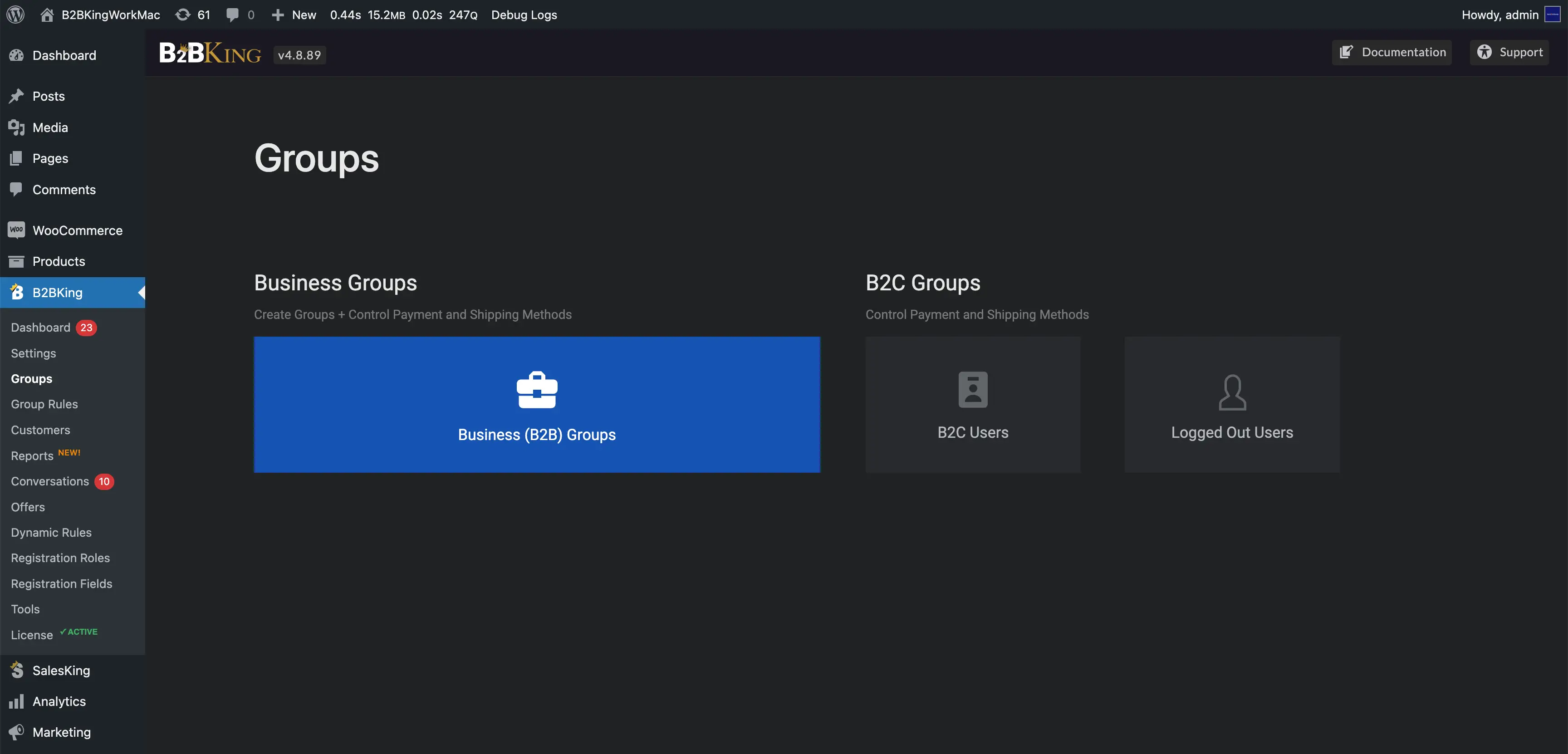
The configuration lives in one place. Go to B2BKing → Groups. You will see three areas: Business Groups, B2C Users, and Logged Out Users.
Open any business group and you will find a checkbox for every payment gateway and shipping method currently enabled in WooCommerce. Tick the methods that group should see, untick the rest, and click Update. Repeat for each group. Then open B2C Users and Logged Out Users and do the same. These last two are configured independently: settings made for B2C customers do not carry over to guests.
To override the group setting for one customer, open their profile under Users, find the shipping and payment methods dropdown, choose "Manual setting", and select their methods.
The full walkthrough with screenshots is in the payment and shipping methods documentation.
Invoice and Pay-Later Payment Methods
Restricting payment methods only helps if you have a method worth restricting. Most B2B stores need at least one option that lets an approved buyer complete checkout without paying at that moment. Our WooCommerce B2B guide covers invoice, purchase order and credit options in more detail.
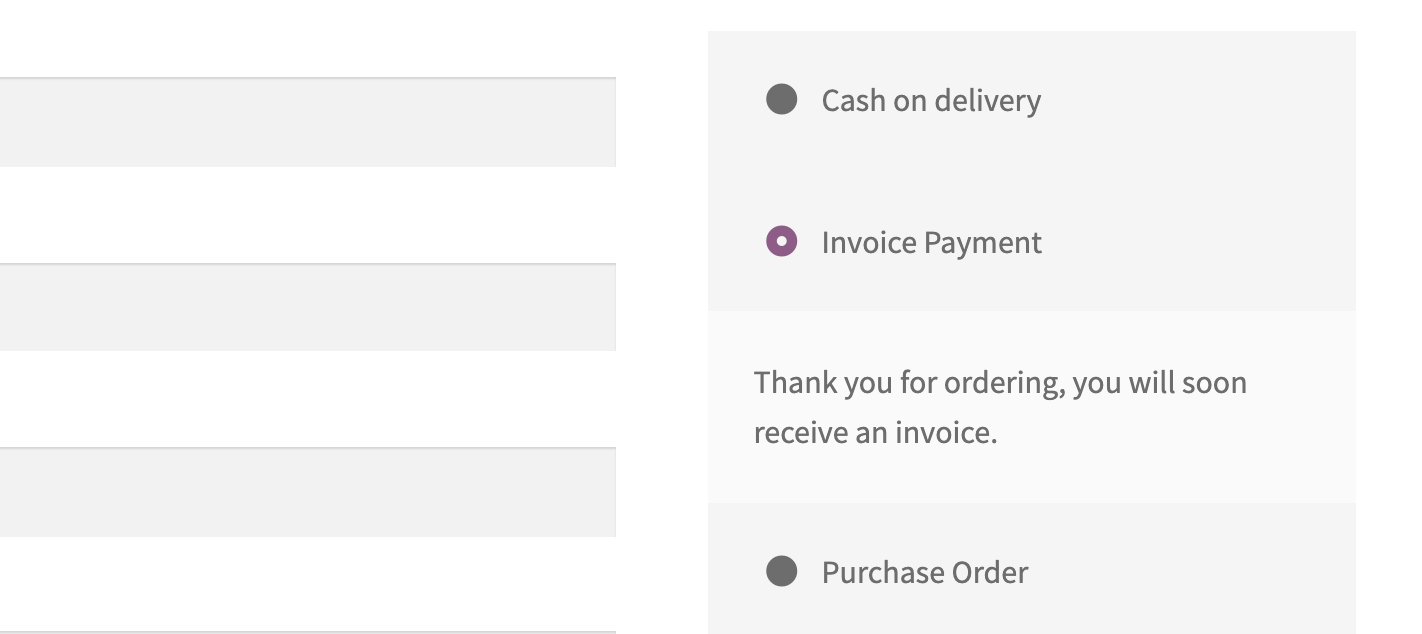
B2BKing includes a built-in Invoice payment gateway for this purpose. When a customer selects it, the order is placed and marked for later payment, and the store follows up with an invoice through its normal process. The gateway's title and description are fully editable under WooCommerce → Settings → Payments, so a store offering Net 30 can label it "Invoice (Net 30 terms)" and describe the conditions in the checkout text. The Net 30 payment terms guide covers this setup.
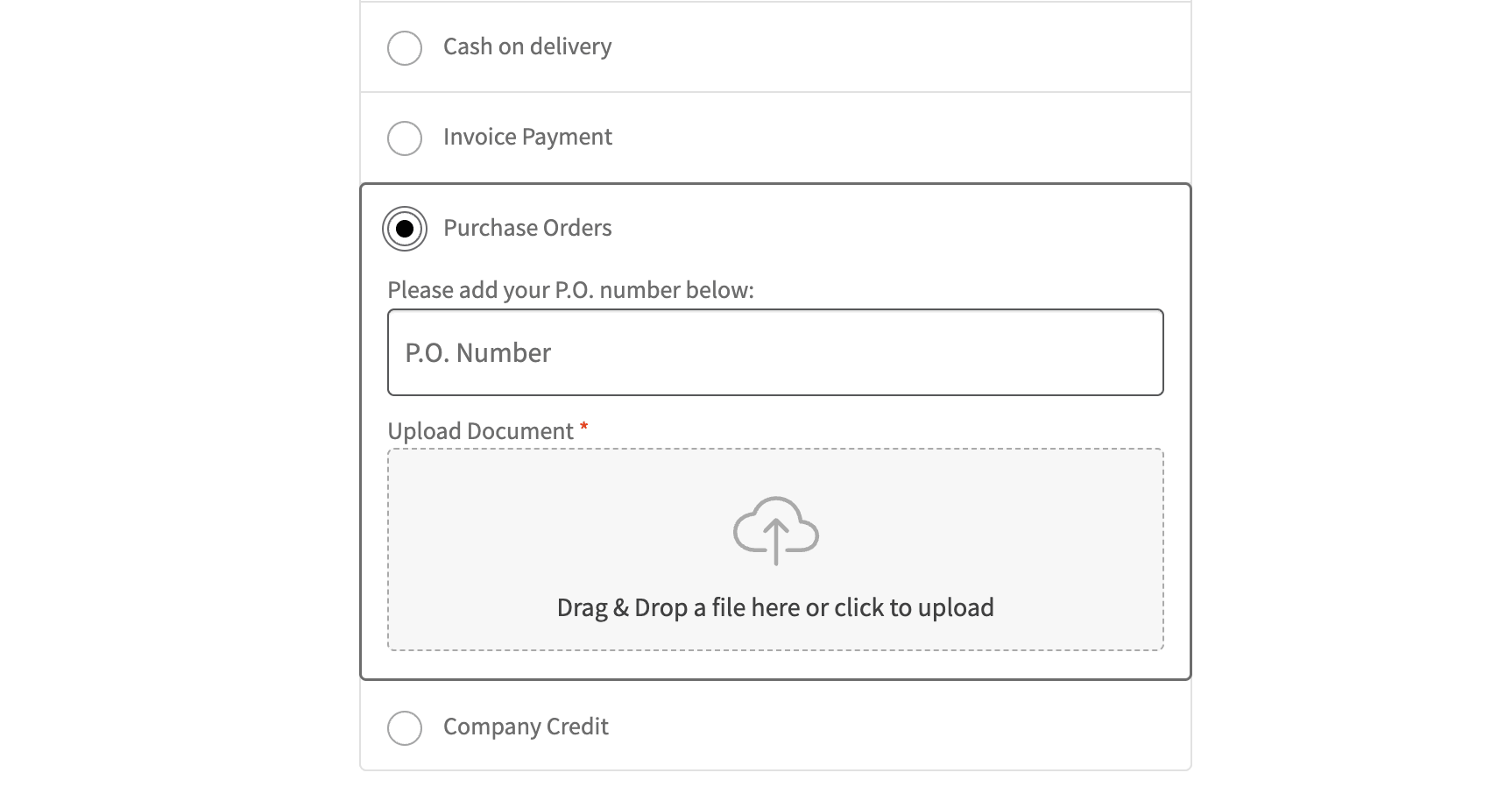
For purchase orders, B2BKing's custom checkout fields let you add a required PO Number field that appears only for specific groups, so the reference is captured on the order and printed on the invoice.
Going Beyond On/Off: Conditions, Discounts and Surcharges
Once payment methods are assigned by group, the next requests are usually conditional.
Minimum and Maximum Order Value per Method
A store may be happy to accept Cash on Delivery for orders under $500 but not above, or may want bank transfer available only for orders above $1,500 because smaller transfers cost more in reconciliation time than they save in fees. B2BKing handles this with a "Payment Method Min / Max Order" dynamic rule, which hides a method at checkout when the cart total or quantity falls outside the range. Rules can target specific groups, B2C users, or guests. Details are in the payment method min and max documentation.
Payment Method Discounts and Surcharges
The same rules engine can attach a discount or a surcharge to a method. Common examples are a 2% discount for bank transfer, which rewards the cheapest method for the store, or a 3% surcharge on PayPal to recover fees on large wholesale orders. Surcharges are simply discounts entered as a negative value. As with everything else, they can be limited to particular groups, so a retail customer paying $40 by PayPal is never surcharged while a distributor paying $8,000 is. See payment method discounts and surcharges.
Shipping Methods by User Role
The same group panel controls shipping methods, so a wholesale group can be limited to freight or pallet delivery while retail customers see standard parcel rates. That topic has enough of its own considerations, such as zone-based shipping and free shipping thresholds, that we cover it separately in our guide to WooCommerce shipping methods by user role.
Assigning Groups Through Registration and Approval
Payment access follows group membership, so the question of who gets which payment methods is really the question of how customers end up in groups.
B2BKing's registration form includes a role dropdown where an applicant chooses what they are applying for, such as Reseller or Distributor. This is a request, not an assignment. When the admin reviews the application, they choose the actual group at the moment of approval. Because the group determines both pricing and payment methods, the approval step is where a customer is effectively granted or denied invoice terms. Approval can be manual, which most wholesale stores prefer, or automatic for stores that verify customers another way.
From there, Group Rules can move customers automatically. A store might start every approved account in a "Wholesale (Prepaid)" group and let the rules promote them to "Wholesale (Net 30)" once lifetime purchases pass $10,000, with no manual step needed.
B2BKing vs. Other Plugins
There are several capable plugins that restrict WooCommerce payment methods by role. WooCommerce's own Role-Based Shipping/Payment Methods extension does exactly what its name says, with a checkbox grid of roles against gateways. Payment Gateways by User Roles for WooCommerce on WordPress.org offers include and exclude lists per gateway, and its Pro version extends this to third-party gateways. Barn2's WooCommerce Wholesale Pro adds a payment roles setting alongside its wholesale pricing. For a store whose only requirement is "wholesale role sees bank transfer, retail role sees cards", any of these will do the job.
B2BKing differs in scope rather than in the basic mechanism. Payment control is per group and per individual customer, with separate configuration for B2C customers and logged-out visitors. The Invoice gateway is built in rather than borrowed from another plugin. Order amount conditions, discounts, and surcharges per method use the same dynamic rules that handle wholesale discounts and minimum orders. And because payment methods, prices, tax exemptions, product visibility, and registration approval all live in one system, a customer's group is decided once and applied everywhere.
The practical difference shows up in maintenance. A store running a wholesale pricing plugin, a separate role-based payment plugin, a third plugin for invoice payment, and a fourth for surcharges has four developers' update schedules to reconcile and four places where a conflict can start.
Frequently Asked Questions
Can WooCommerce show different payment methods to different users? Not by default. WooCommerce displays every enabled payment gateway to every customer. Showing different methods to different users requires custom code using the woocommerce_available_payment_gateways filter or a plugin such as B2BKing that assigns payment methods per customer group or per individual customer.
How do I hide PayPal or credit card payment for wholesale customers? In B2BKing, open the wholesale group under B2BKing → Groups → Business Groups and untick the card and PayPal gateways, leaving bank transfer and Invoice enabled. Retail customers, configured under B2C Users, keep their card options.
Can I offer invoice or Net 30 payment only to approved customers? Yes. B2BKing's built-in Invoice gateway can be enabled only for specific business groups, so it appears at checkout for approved wholesale buyers and is hidden for everyone else. The gateway description can state the terms, such as Net 30 or Net 60.
Can I set payment methods for one specific customer rather than a whole role? Yes. B2BKing allows a "Manual setting" on each user profile that overrides the group configuration for that individual customer, which is useful for suspending invoice access or granting an exception.
Does payment method control by user role work with the WooCommerce block checkout? B2BKing supports both the classic and block-based checkout. If you use custom code instead, test it on the block checkout separately, because it resolves gateways through the Store API.
Can I restrict a payment method by order amount as well as by role? Yes. B2BKing's "Payment Method Min / Max Order" dynamic rule hides a method when the cart total or quantity is outside a range you define, and the rule can be limited to specific groups.
Why does my customer see "No available payment methods" at checkout? Most often the customer's group has no payment methods enabled. Open the group in B2BKing → Groups, tick the methods that group should have, and save. If methods are ticked and still missing, a second plugin or snippet filtering payment gateways is the usual cause.

